Help Using The App

Requirements

A registered account with Visual Inspection Pro.

Familiairse yourself with Google Drive and Docs.

Menu

Thumbnail

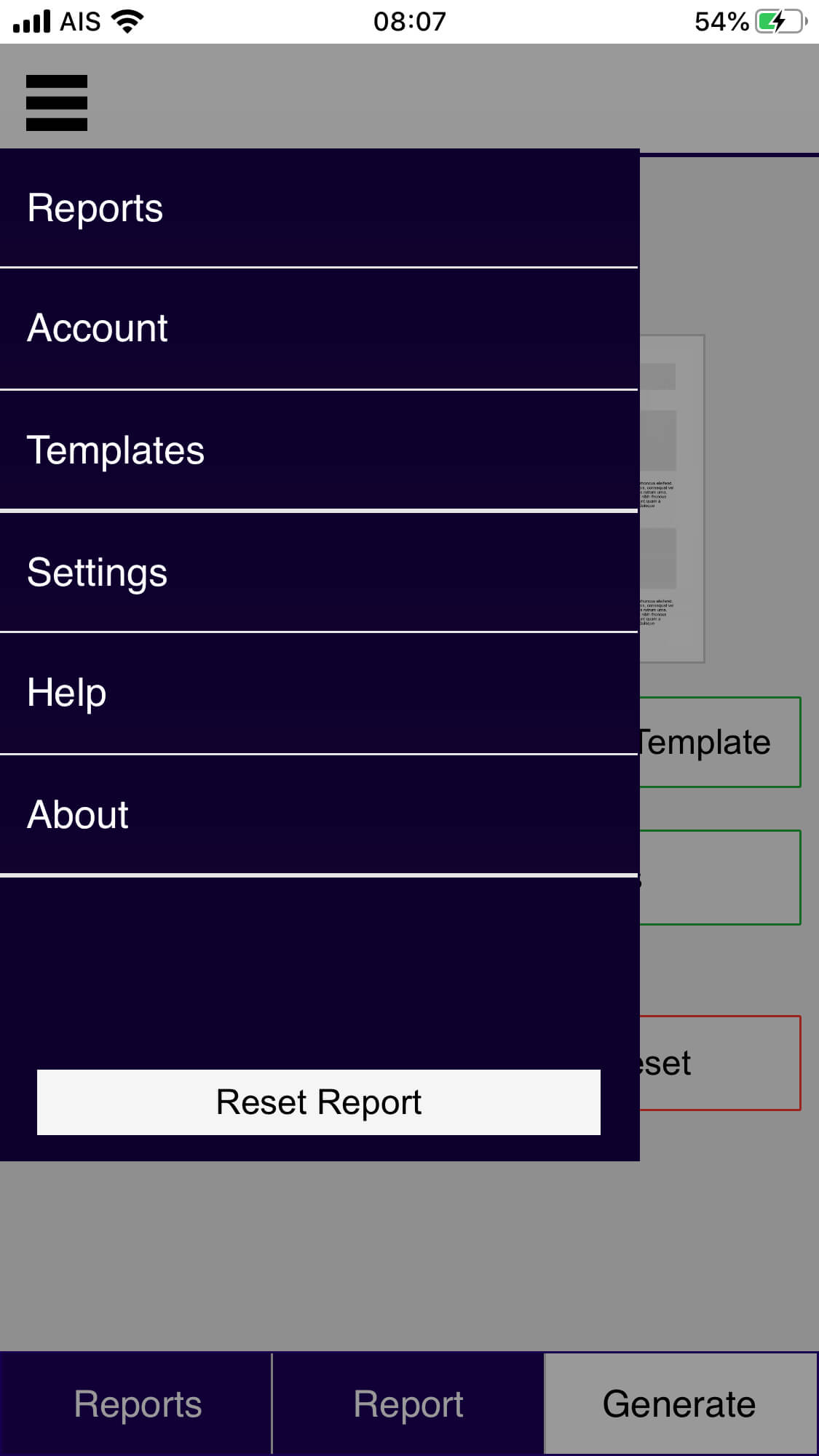
Click on the “hamburger” on the top of the screen to display the menu. This allows you to navigate between parts of the app.

Accounts
Thumbnail

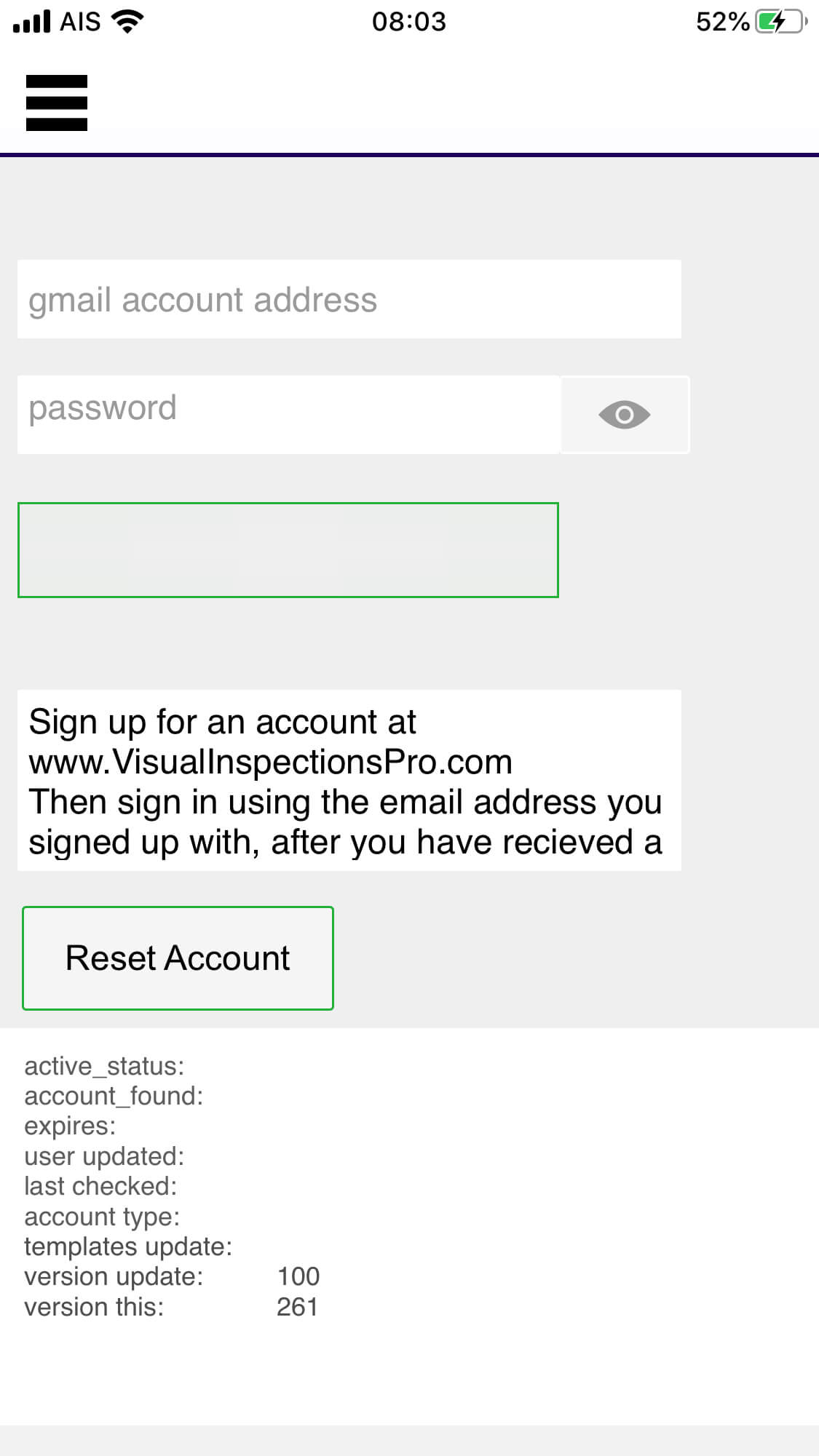
Register your account, or check manually check for updates. Shown is the screen before you have entered your account details. You must use the email address that you signed up to your account with. As part of the the registration process your templates will be loaded into the app. The passcode is a PIN number that has been sent to you. Do not use your Google Account password!

Accounts
Thumbnail

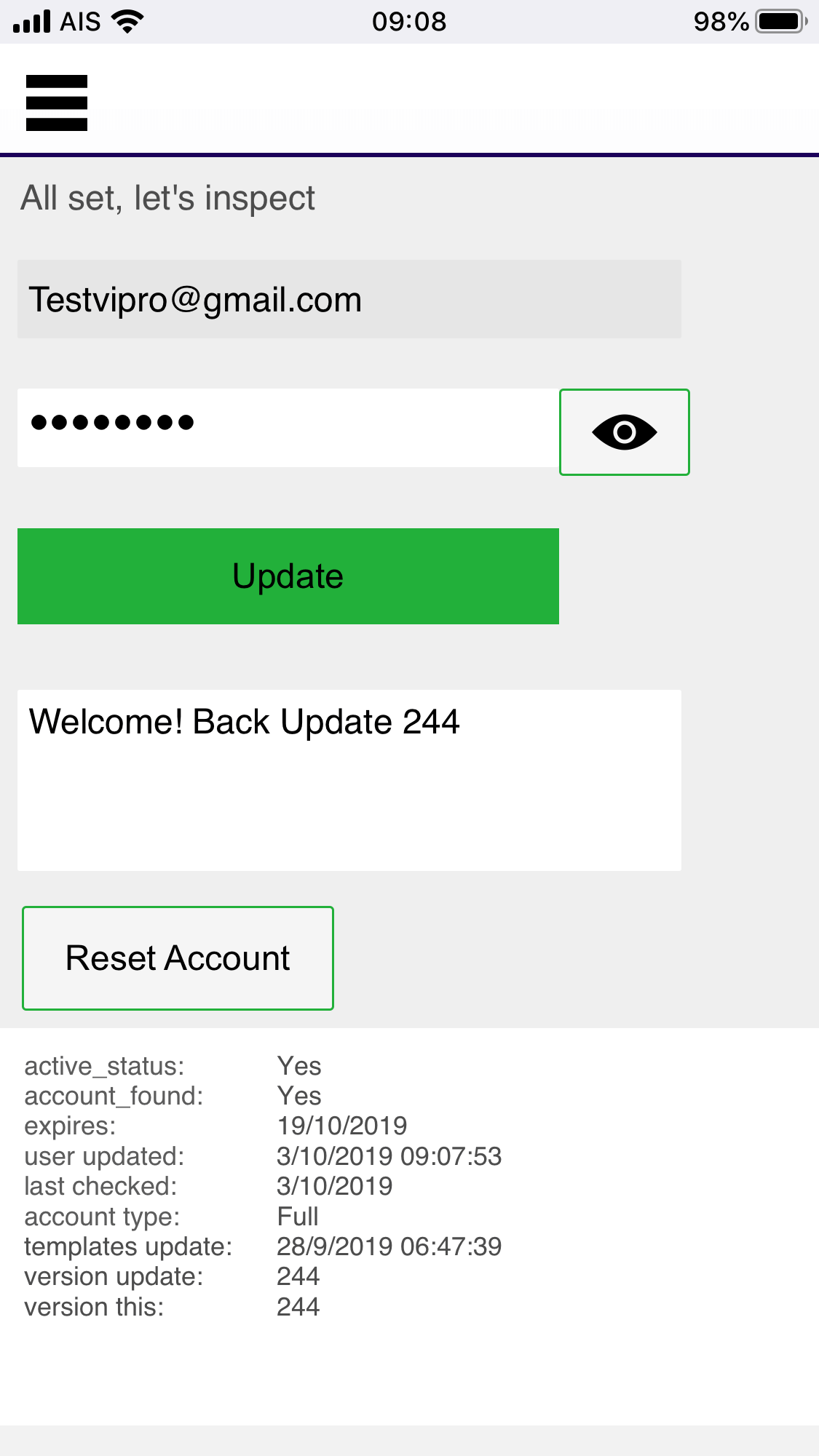
The screen after successfully registering your account. The reset account button will remove the current account from the app, any reports will be kept.

Templates
Thumbnail

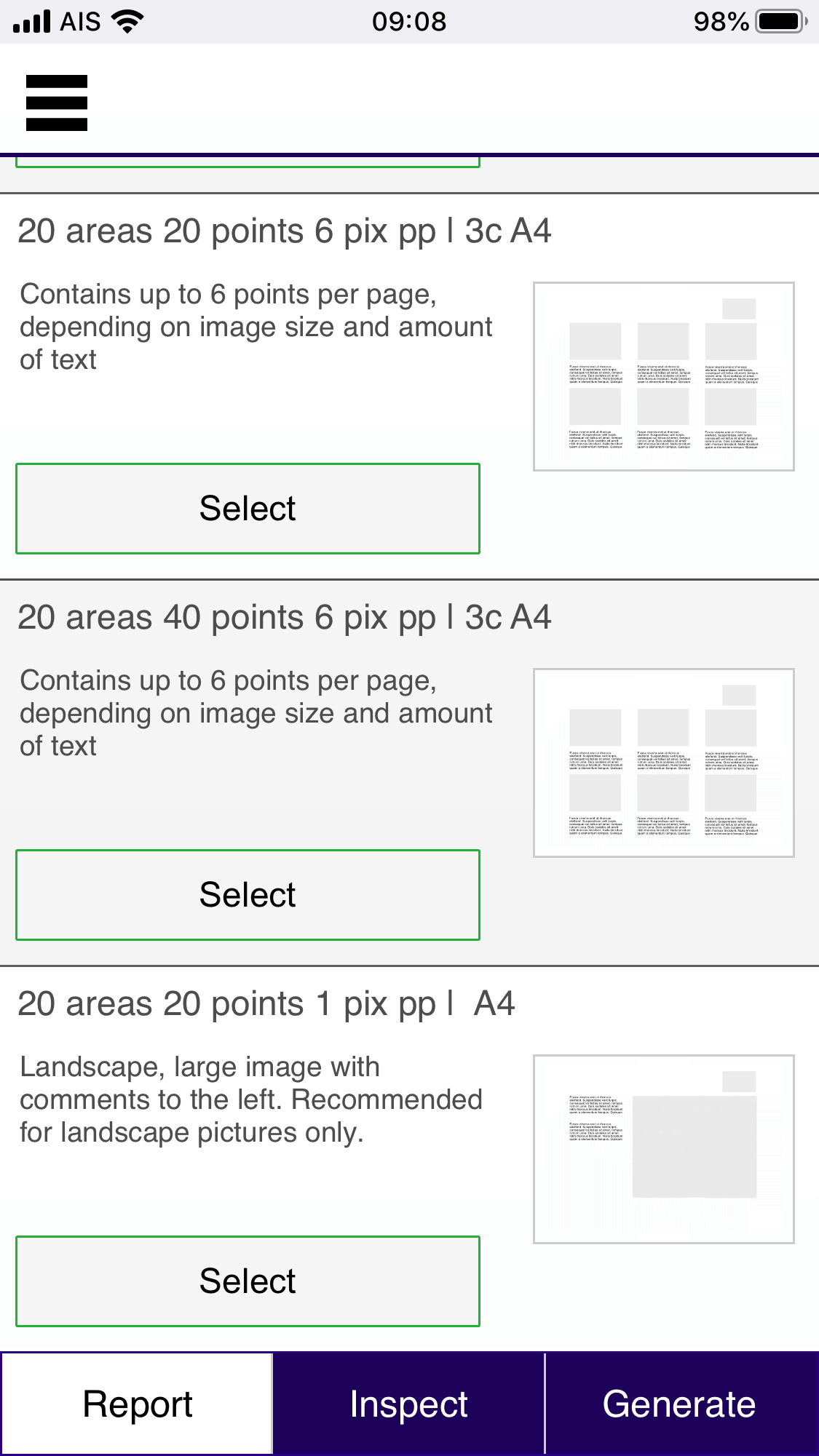
Shows the templates available on the system, scroll up and down the window to select the template you want to use to generate the report. Template styles are duplicated, currently offering either 20 or 40 points per area. If you are using a larger number of points the report will take longer to generate.

Reports
Thumbnail

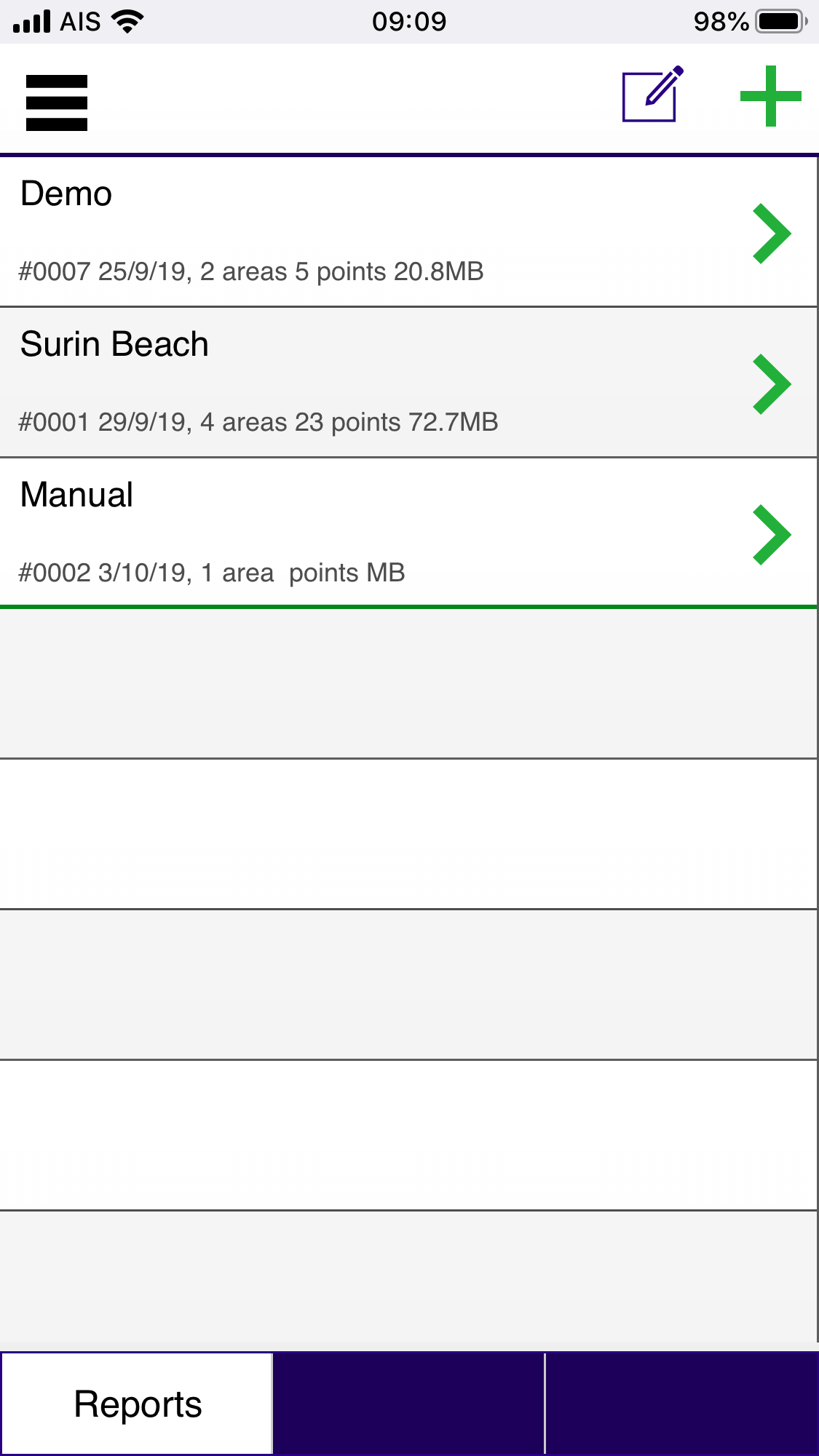
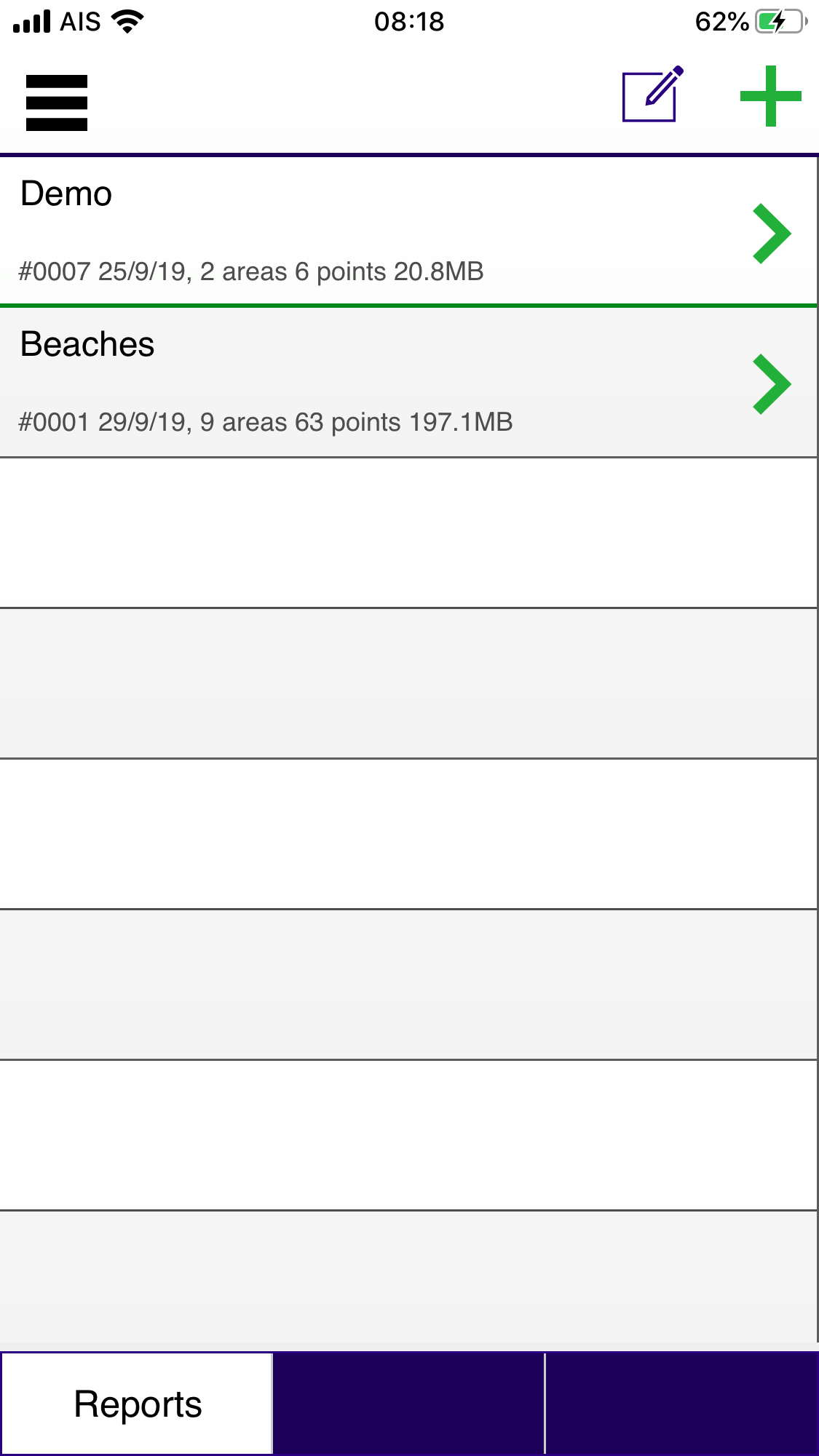
Lists all the reports stored in the app. Below the report title is the serial number used to identify the report, the number of areas and points included in the report, and the approximate data size of the photos included in the report.

Report
Thumbnail

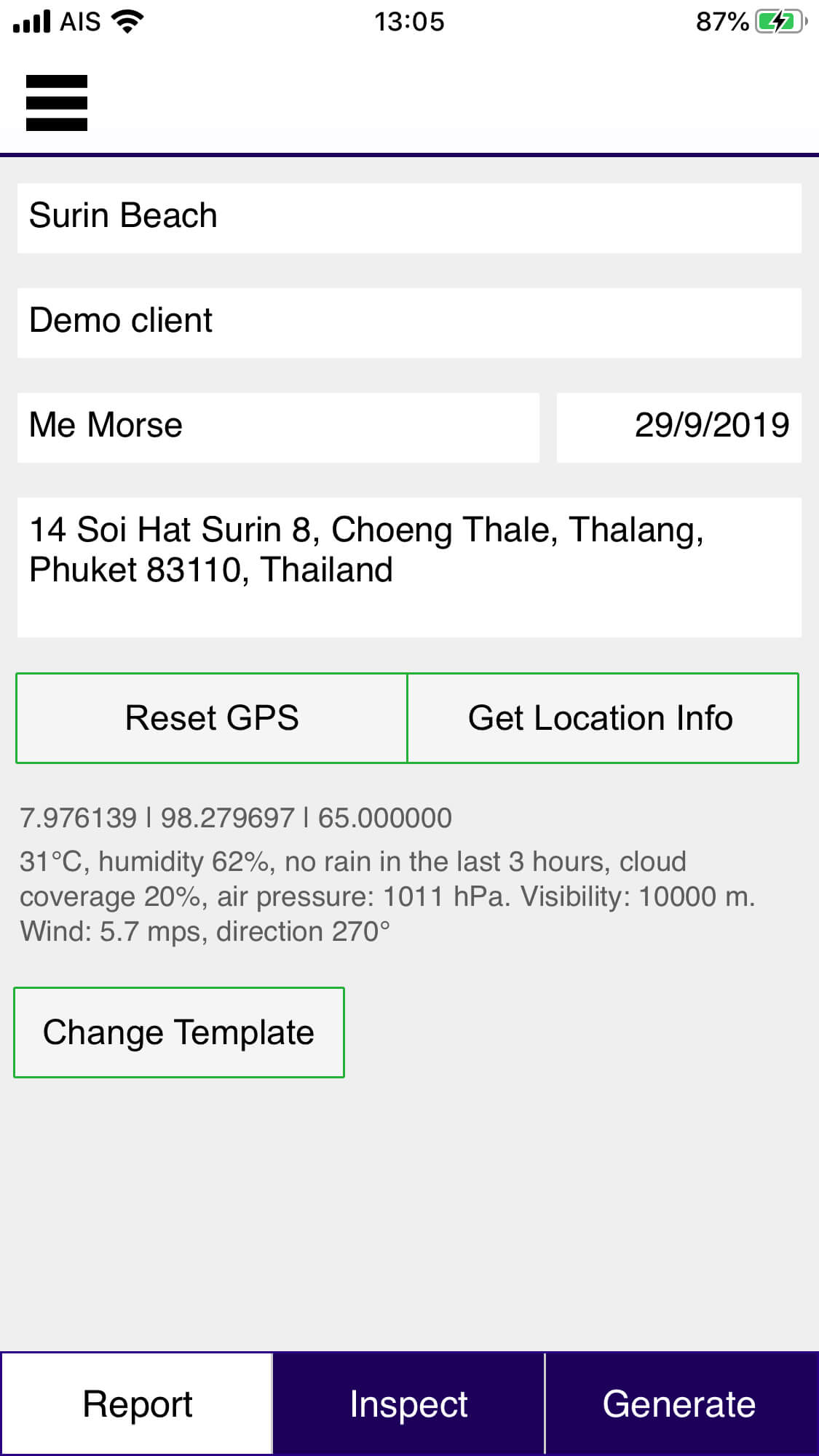
For a single report. The basic details of the screen are shown here. Note that the menu on the bottom of the screen is context sensitive, ie changes depending on which screen you are

Areas
Thumbnail

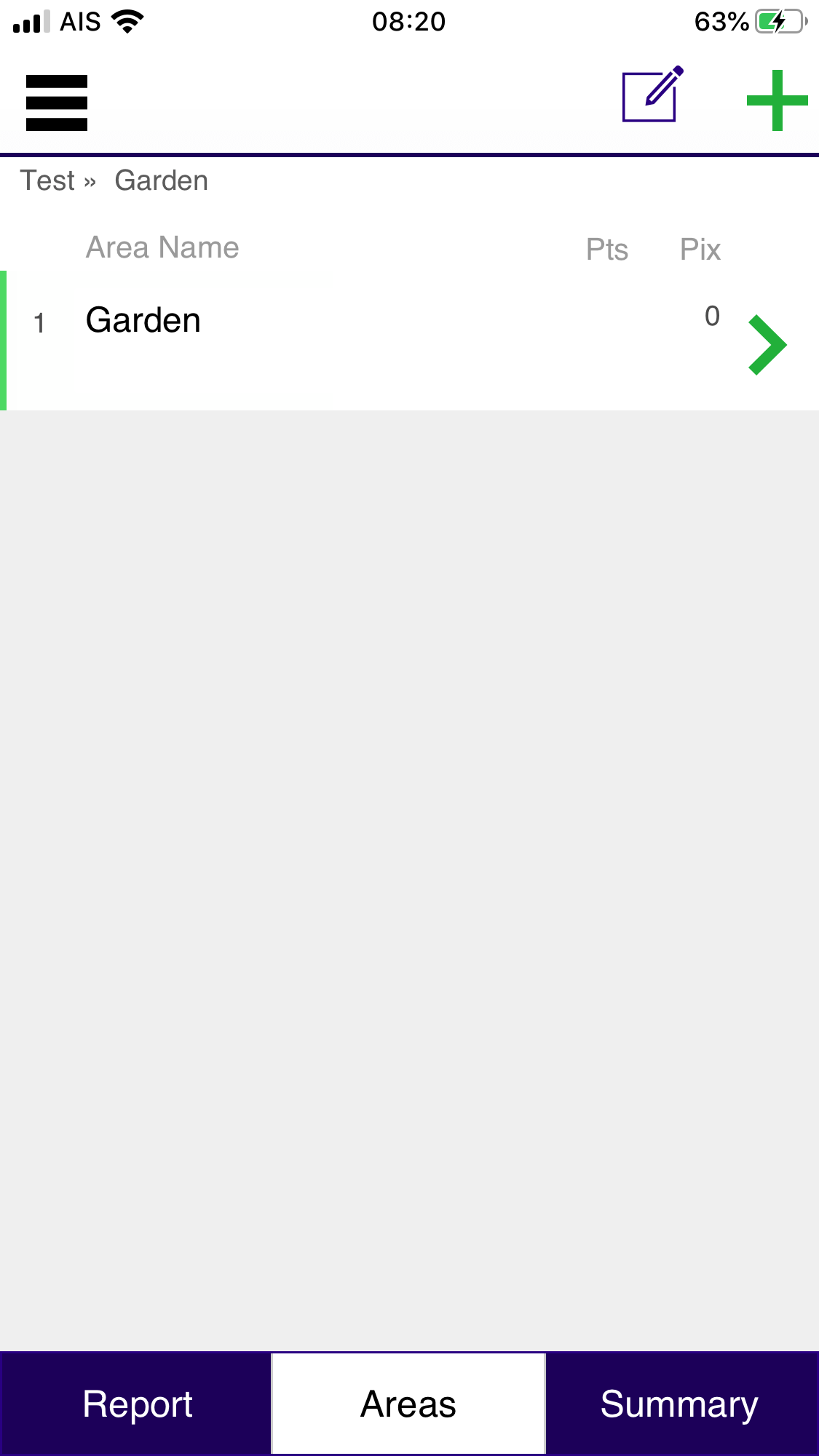
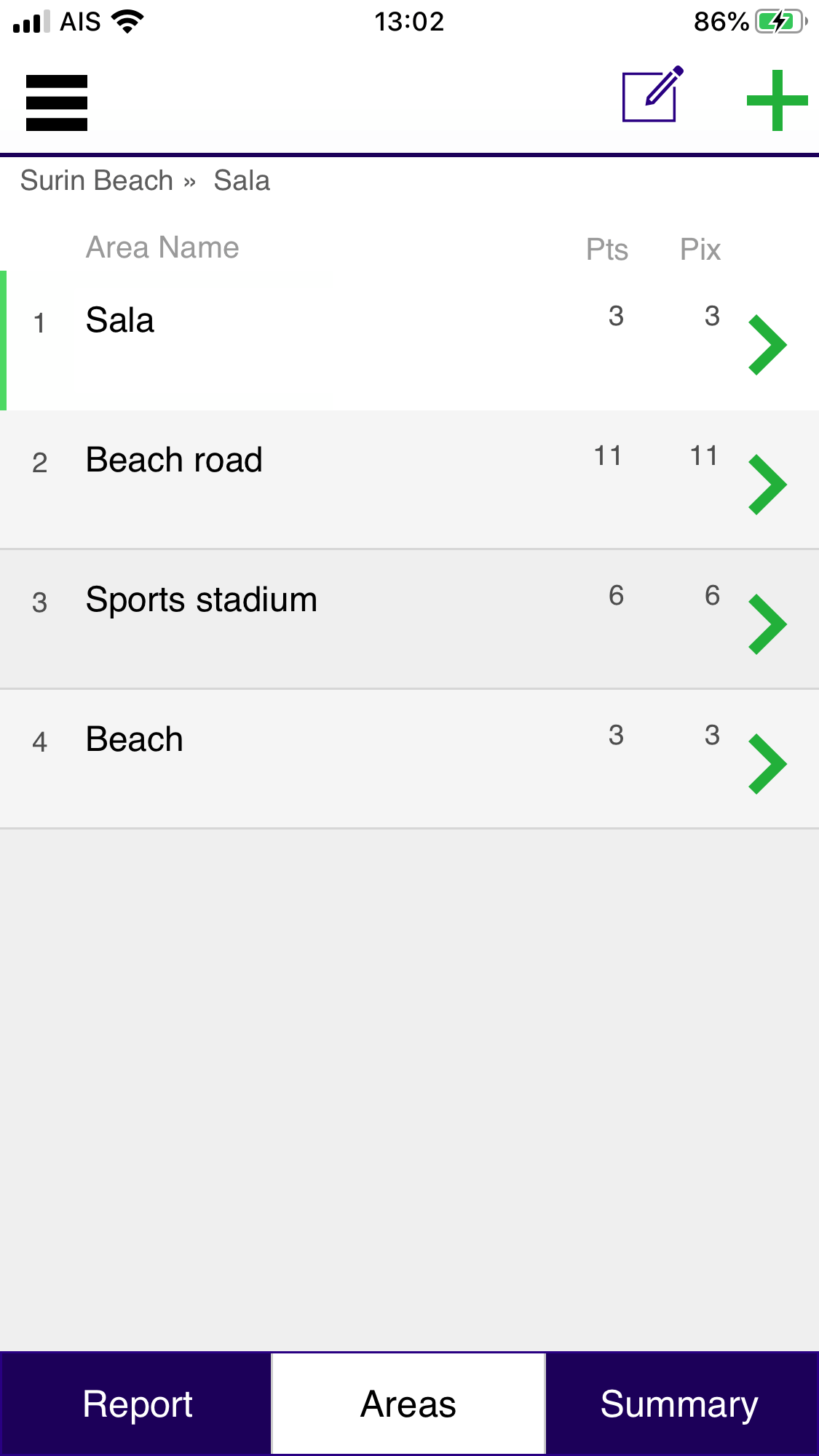
List the areas within a report, along with the number of points and photos included within each area.

Points
Thumbnail

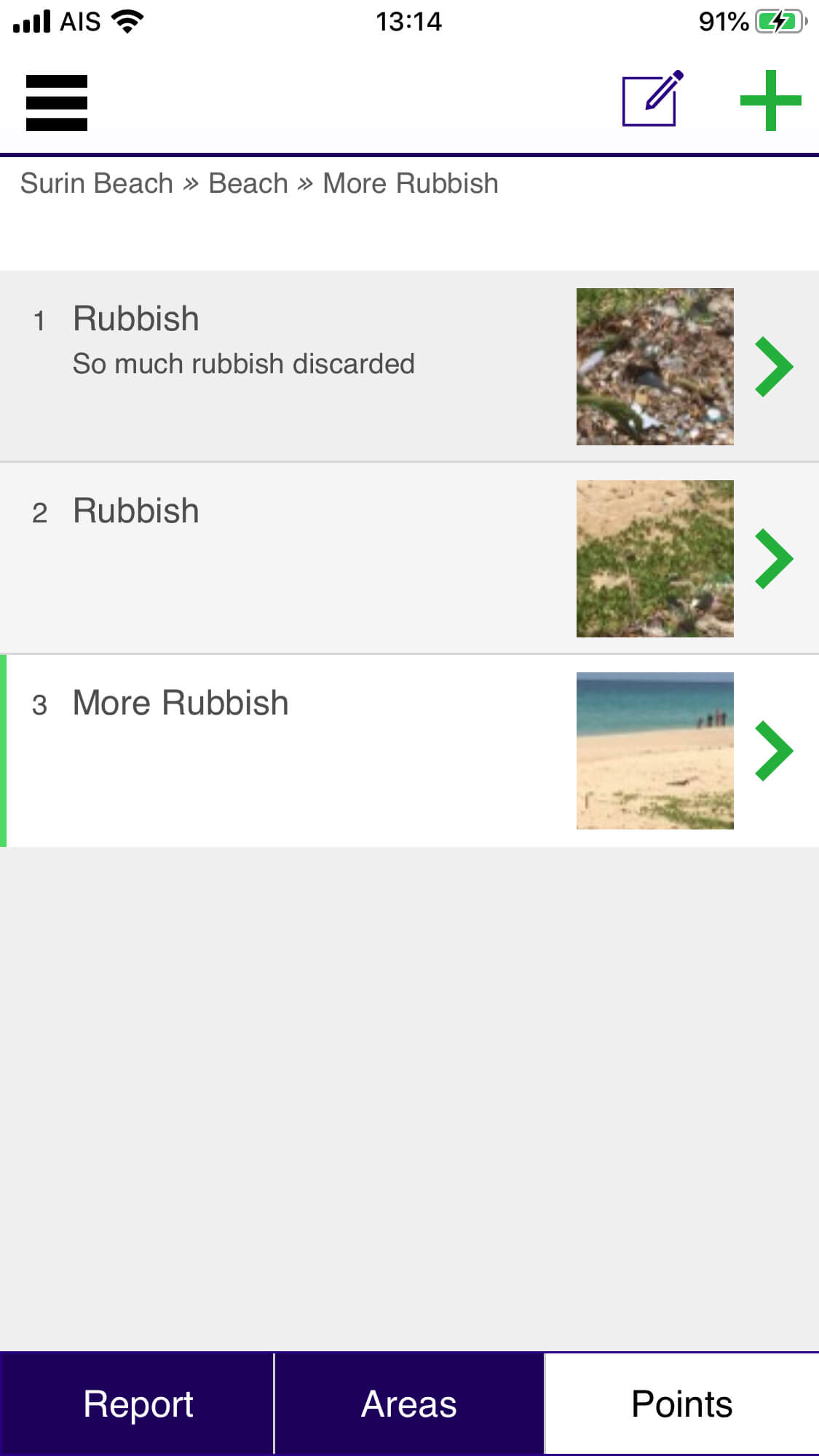
List the points within an area of the report. Towards the top of the screen you will see where you are within the report: report name >> report area >> point

Point
Thumbnail

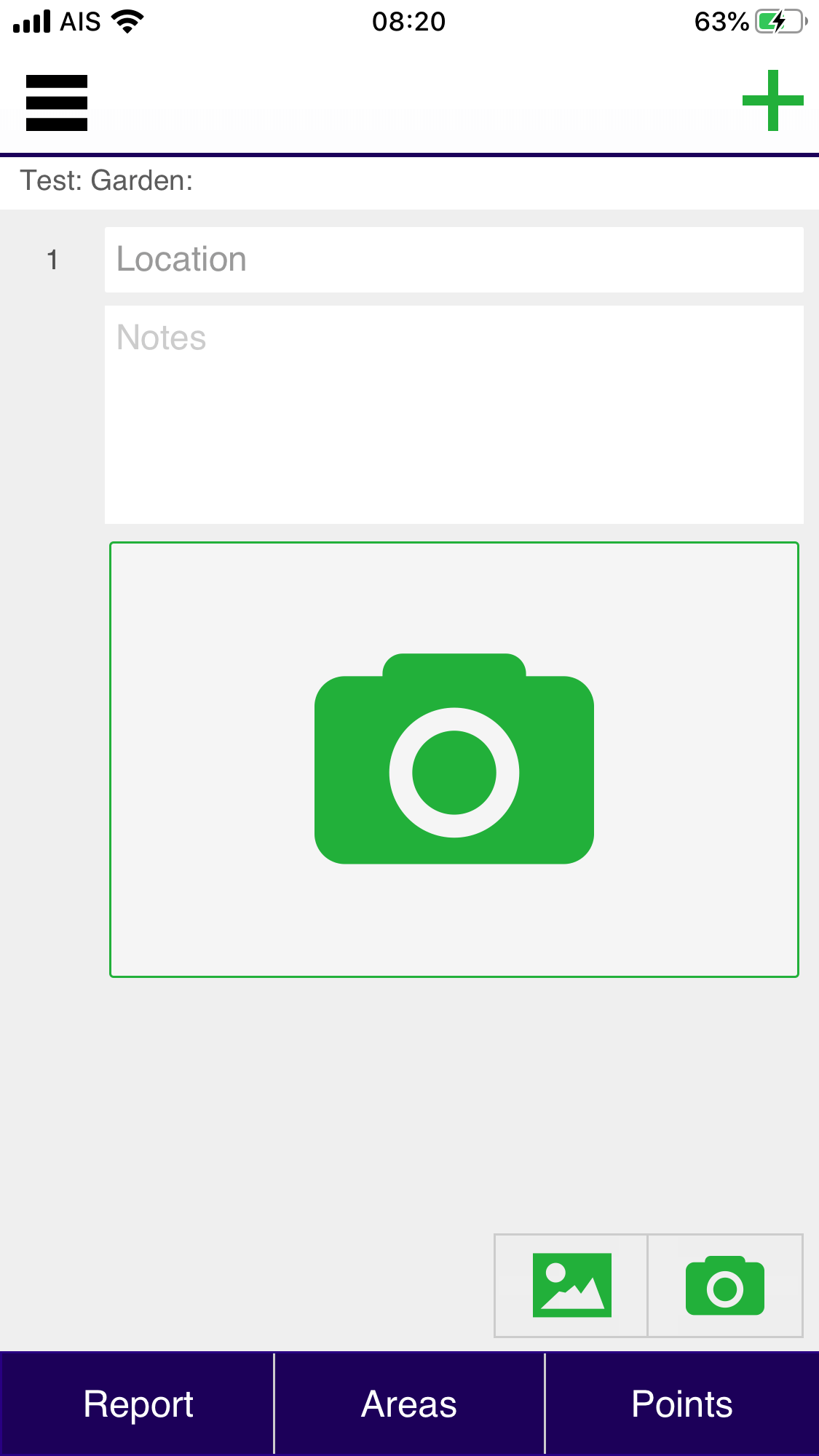
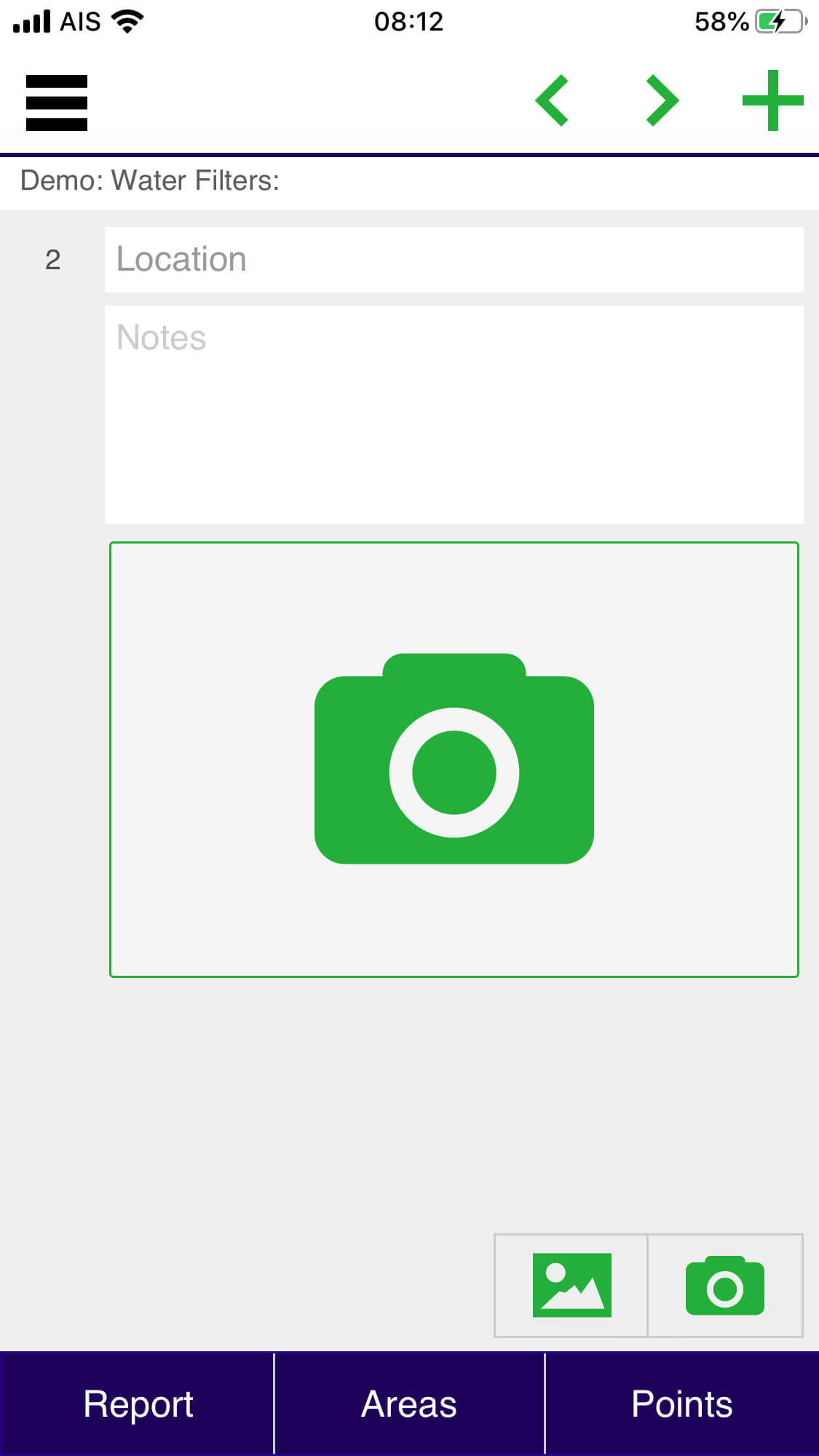
An empty point screen, here the location name. notes and photo are collected. Click on either camera icon to use the camera, or the photo icon to access your photo library.

Report Point
Thumbnail

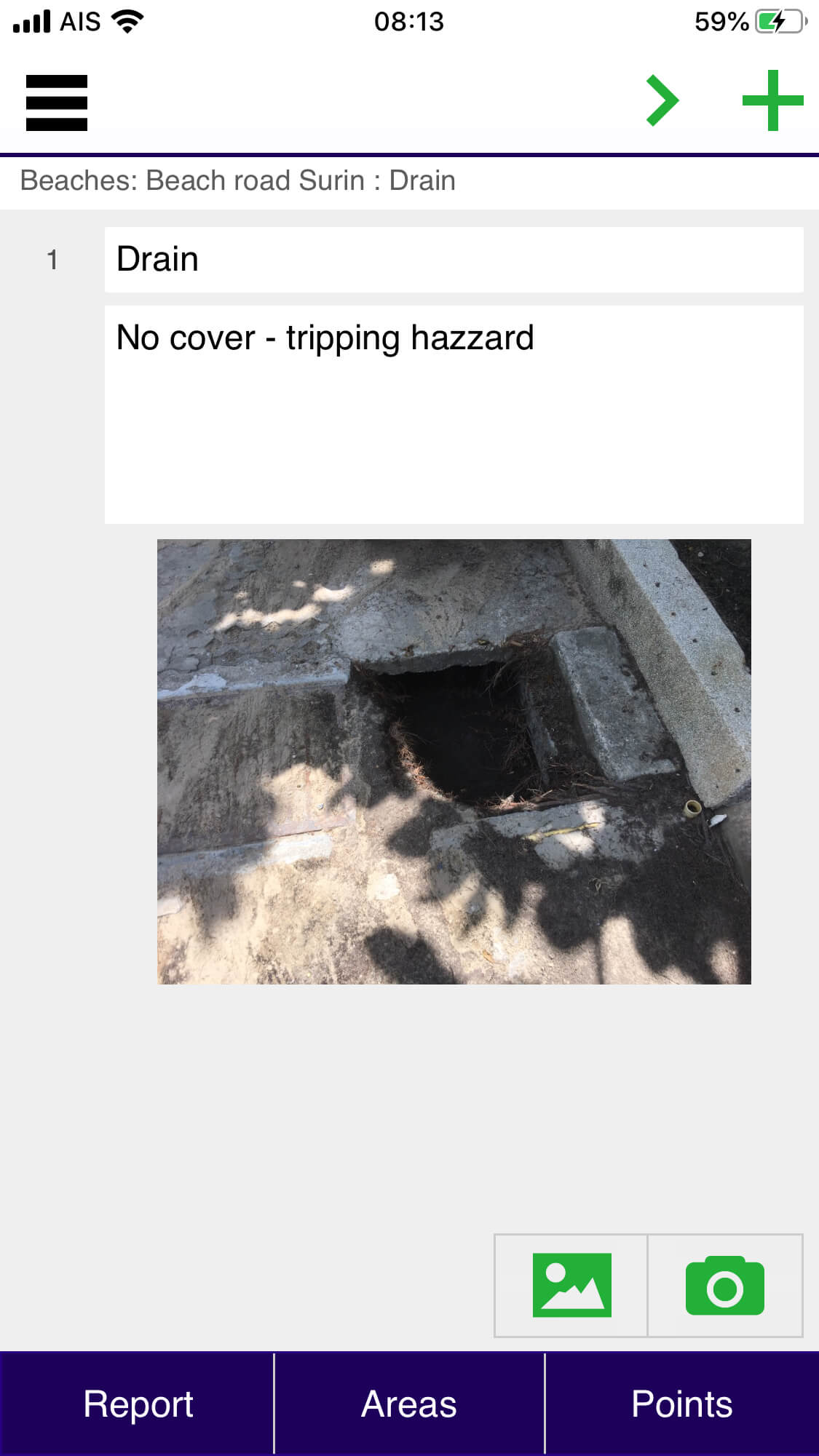
The screen after data has been entered.

Point Landscape
Thumbnail

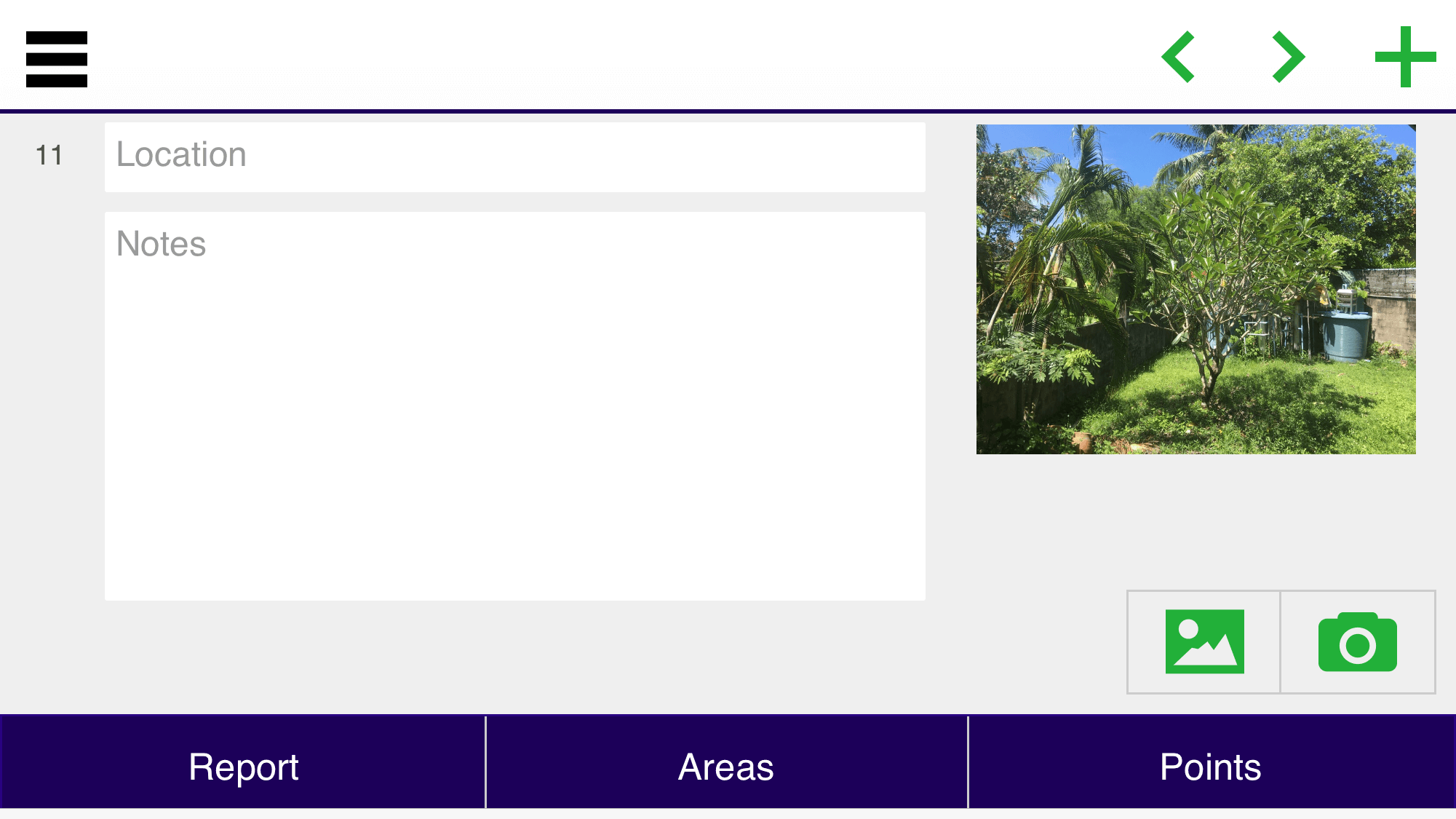
You can also turn your phone into landscape (wide) orientation to capture notes and images in the Point screen. Use the ‘+’ icon on the top of the screen to add a new point after the current one. Use ‘<’ and ‘>’ to navigate backwards and forwards between points.

Summary
Thumbnail

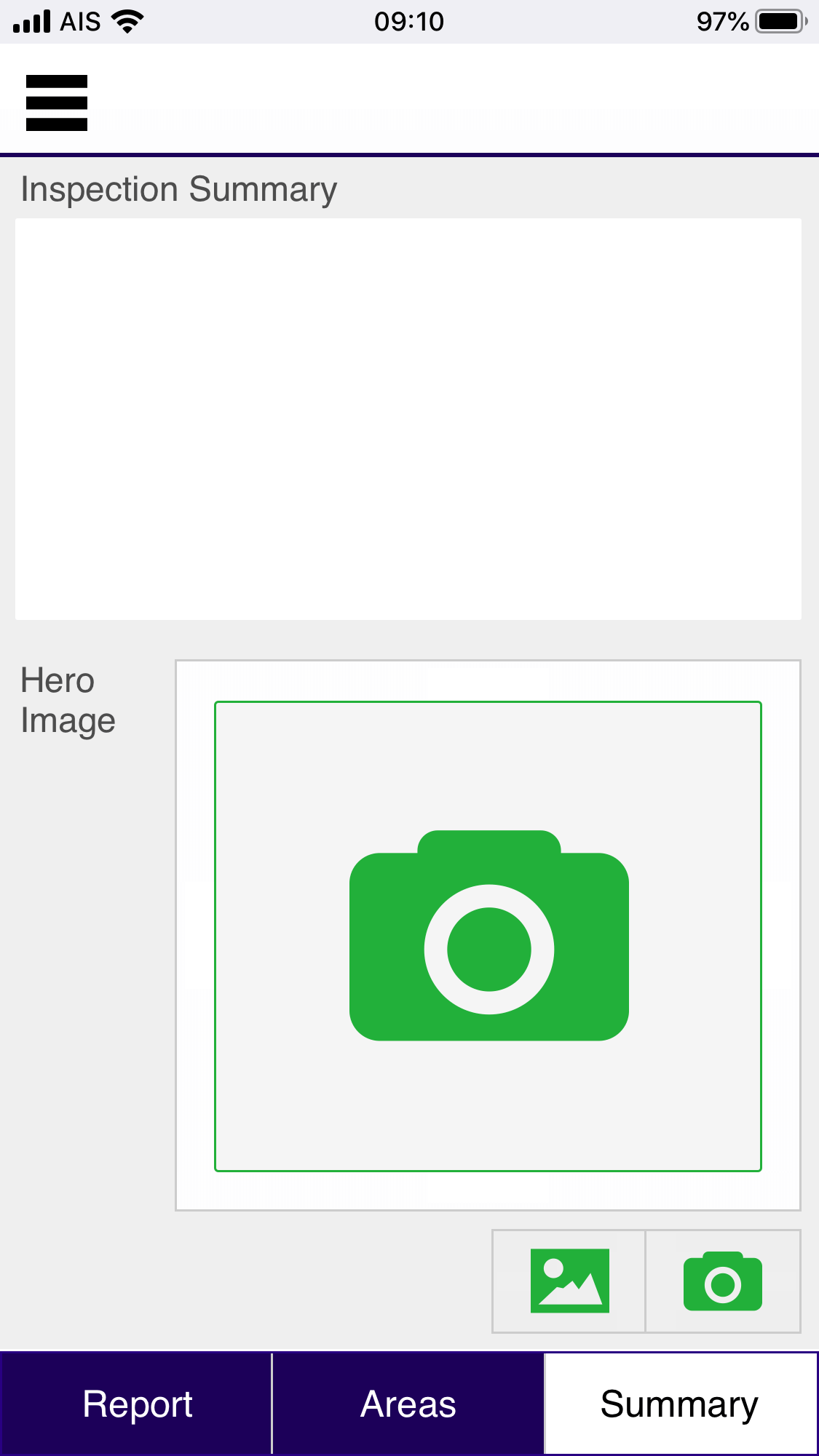
A summary description for the report from here, or added later in Google Docs. A brief note could be expanded later on. The optional Hero Image is displayed on the front page of the report.

Generate
Thumbnail

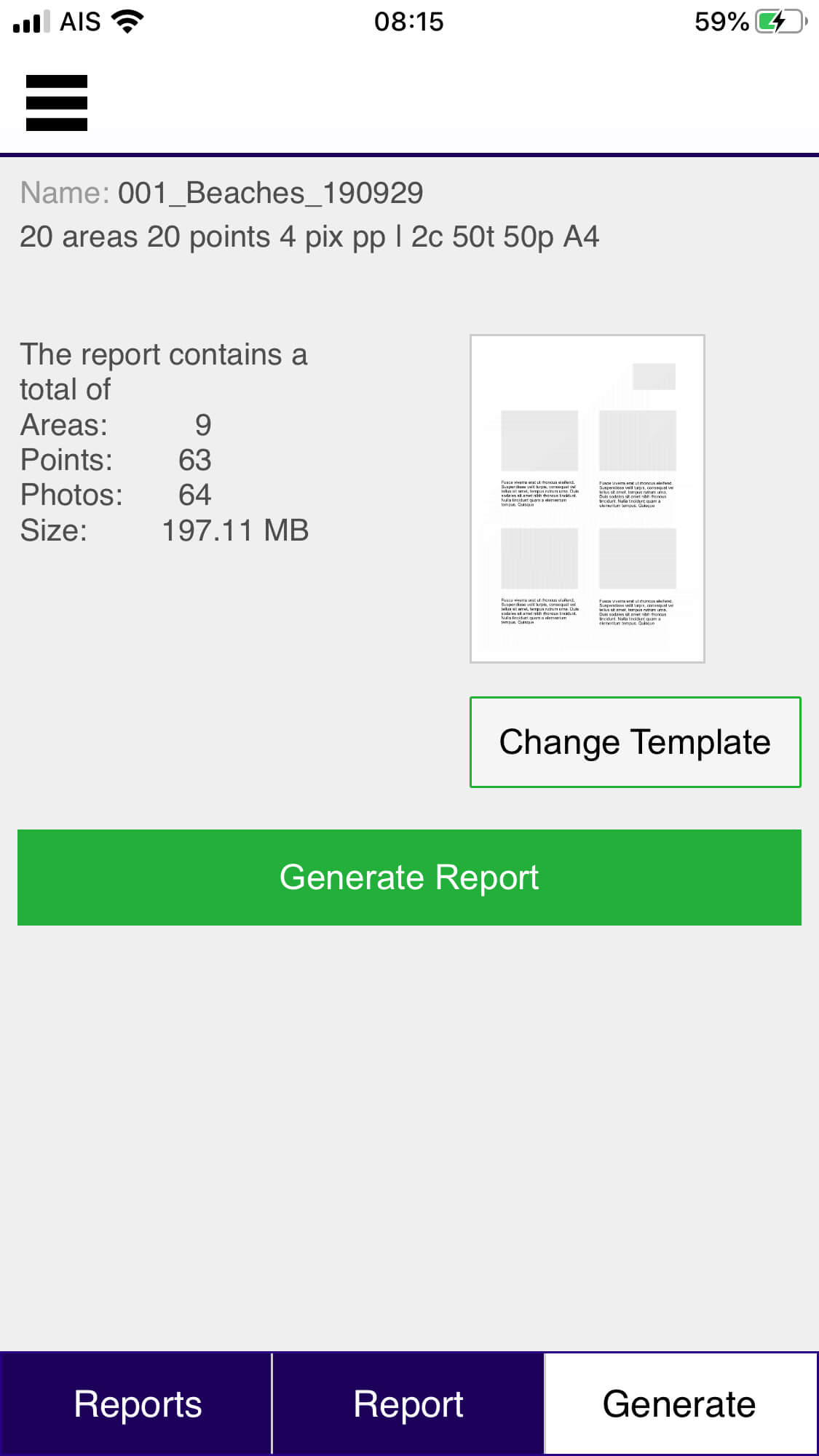
Here you can generate an new Report on Google Docs. The screen shows the details of the selected template, together with the number of areas, points and photos contained in the report, as well as the approximate size of data used for the photos in the report.

Report Generation
Thumbnail

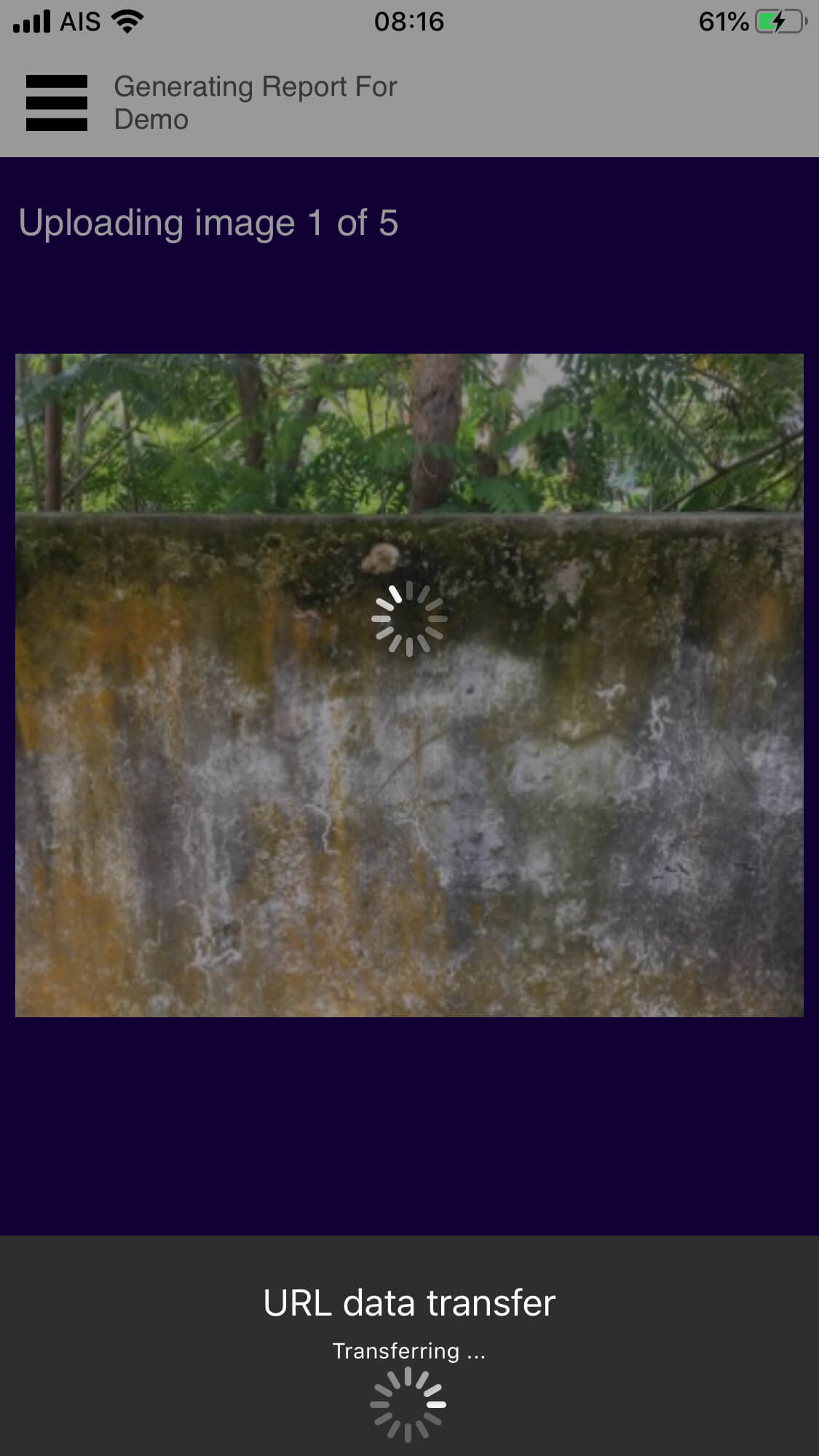
Shown while the app is interacting with the application servers, with feedback on report generation status.

Generate (Post)

Thumbnail

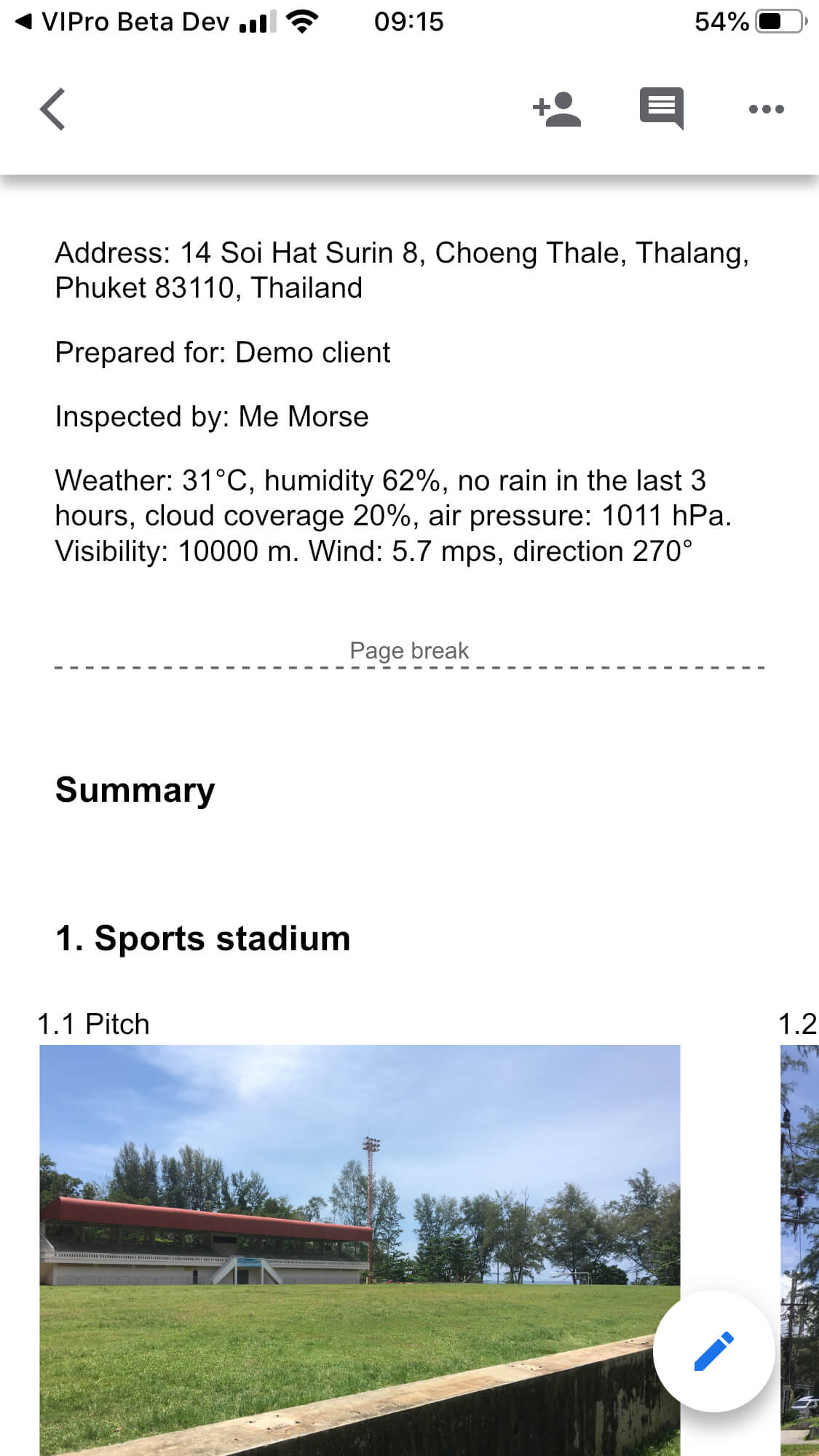
After the report has been successfully generated you can view it in either the Google Docs app (which needs to be installed on your device) or in web browser.

Settings
Thumbnail

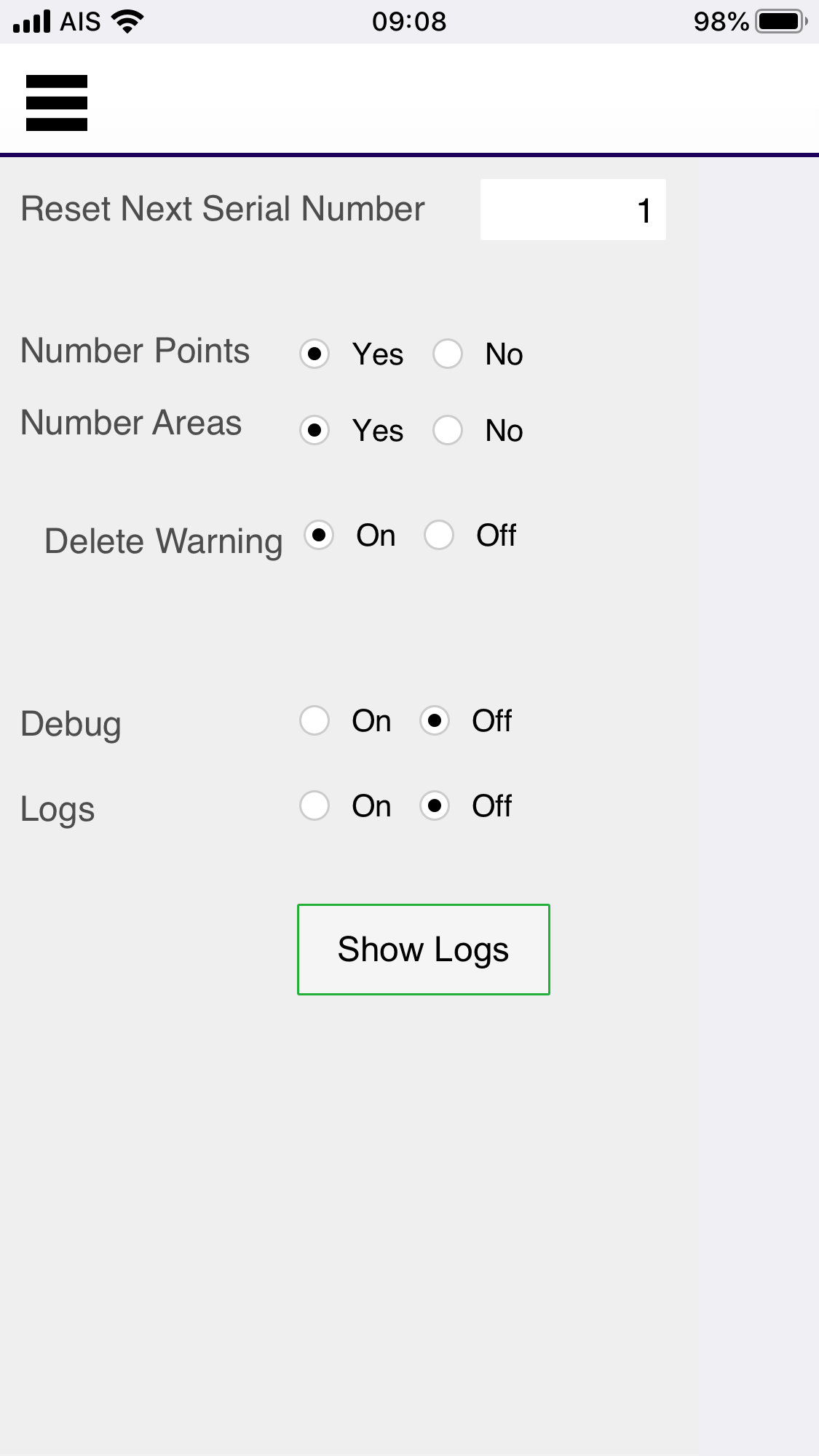
Reset Next Serial Number: Changes the number for the next report, click into the field and enter the new number. Number Points and Number Areas: Will switch off numbering of points and areas in the generated report. Delete warning: turns on or off the warning if you delete a report, area or point.

Help
Thumbnail

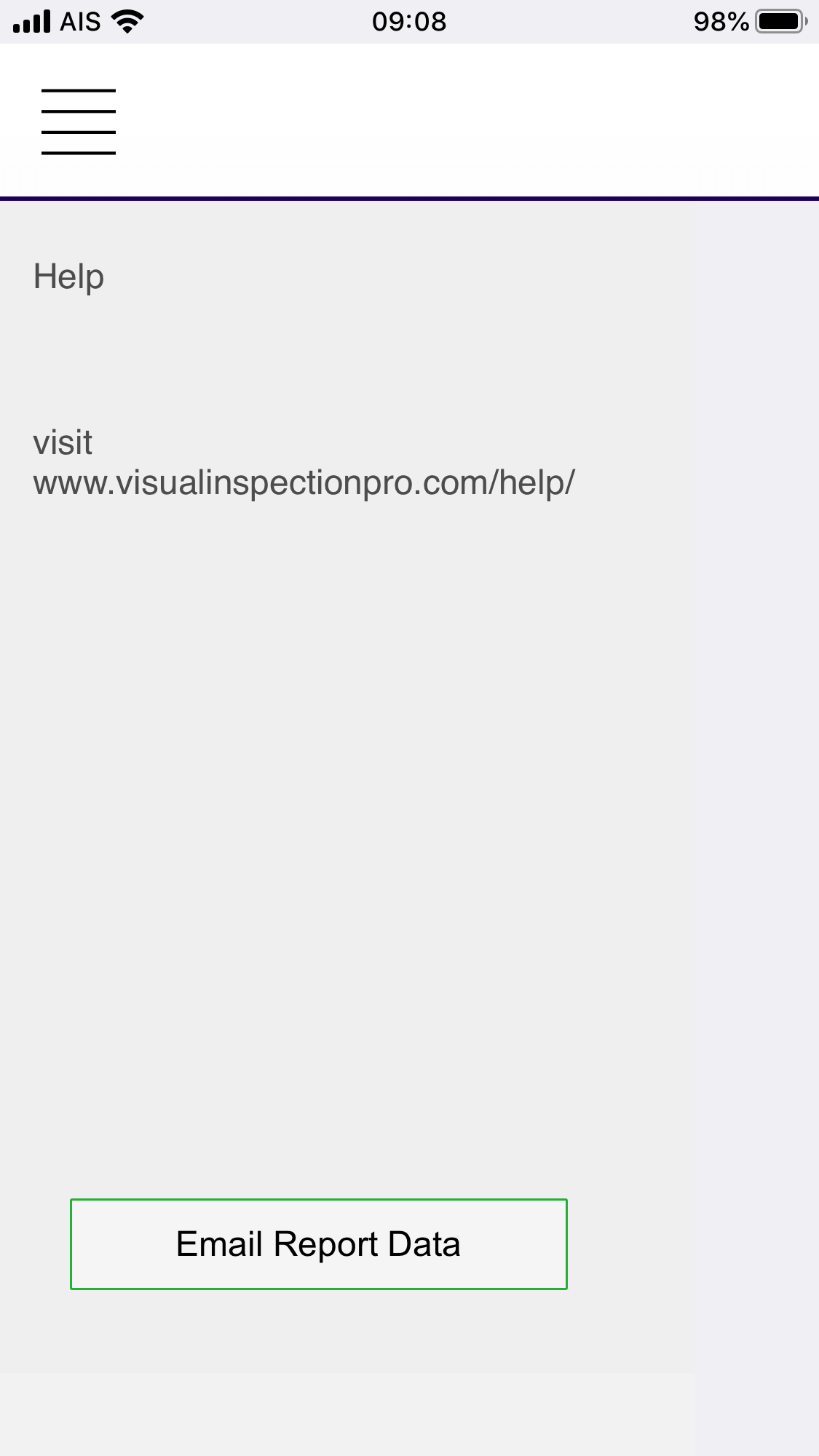
Help is currently only available on the website, visit https//www.visualinspectionpro.com/help

About
Thumbnail

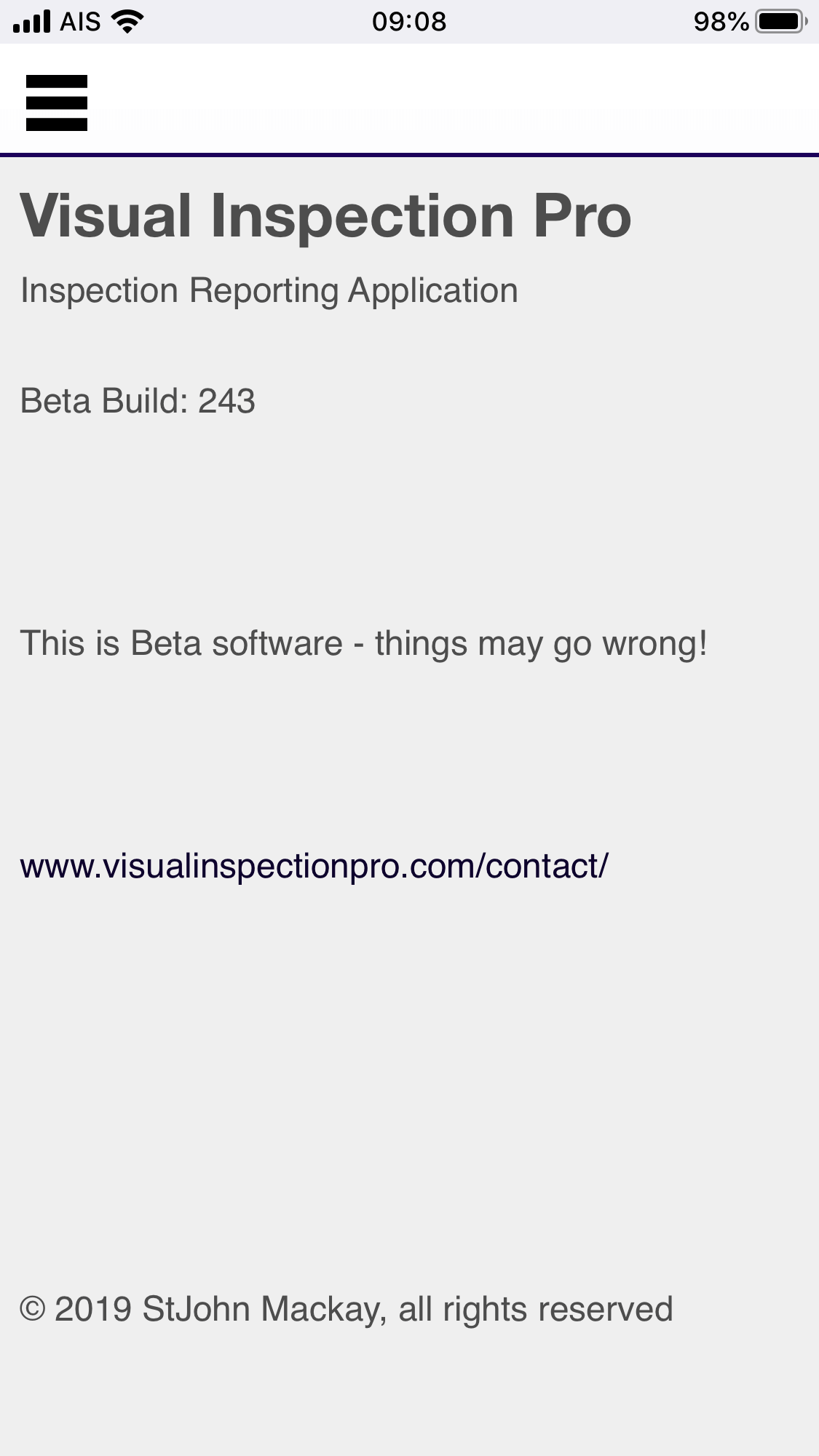
About the application, including current version number.
Create A New Report

Thumbnail

From the Reports screen click on the ‘+’ button at the top of the screen to create a new report. You will automatically be taken to the Report screen.

The New Report

Thumbnail

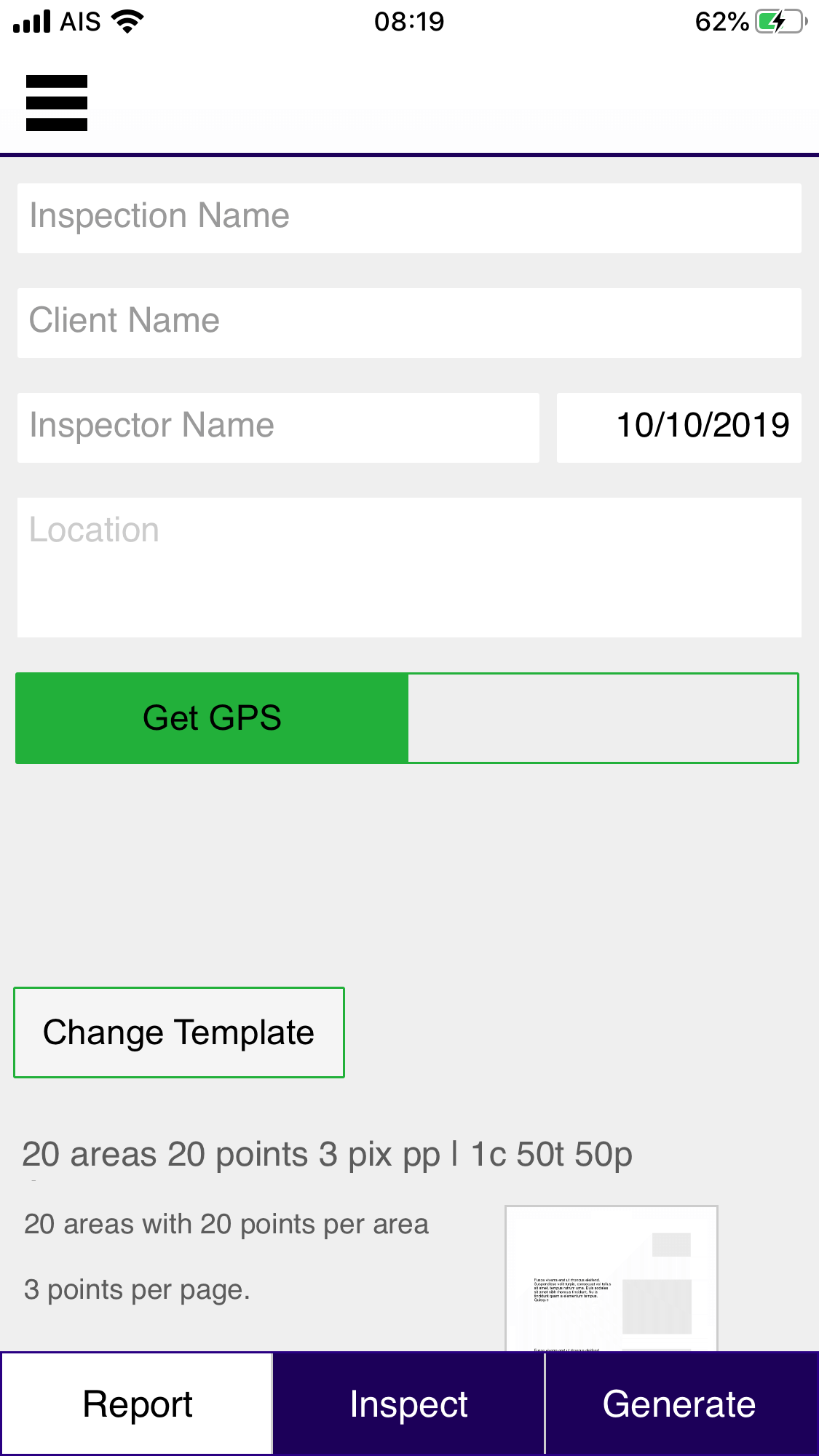
The screen is shown with no data entered. You need to enter the Inspection name, and optionally the client name and the name of the person making the report (the Inspector). The date has been automatically entered to the day the report was created, but this can be changed. Location can be added automatically: press the Get GPS button...

Collect Address

Thumbnail

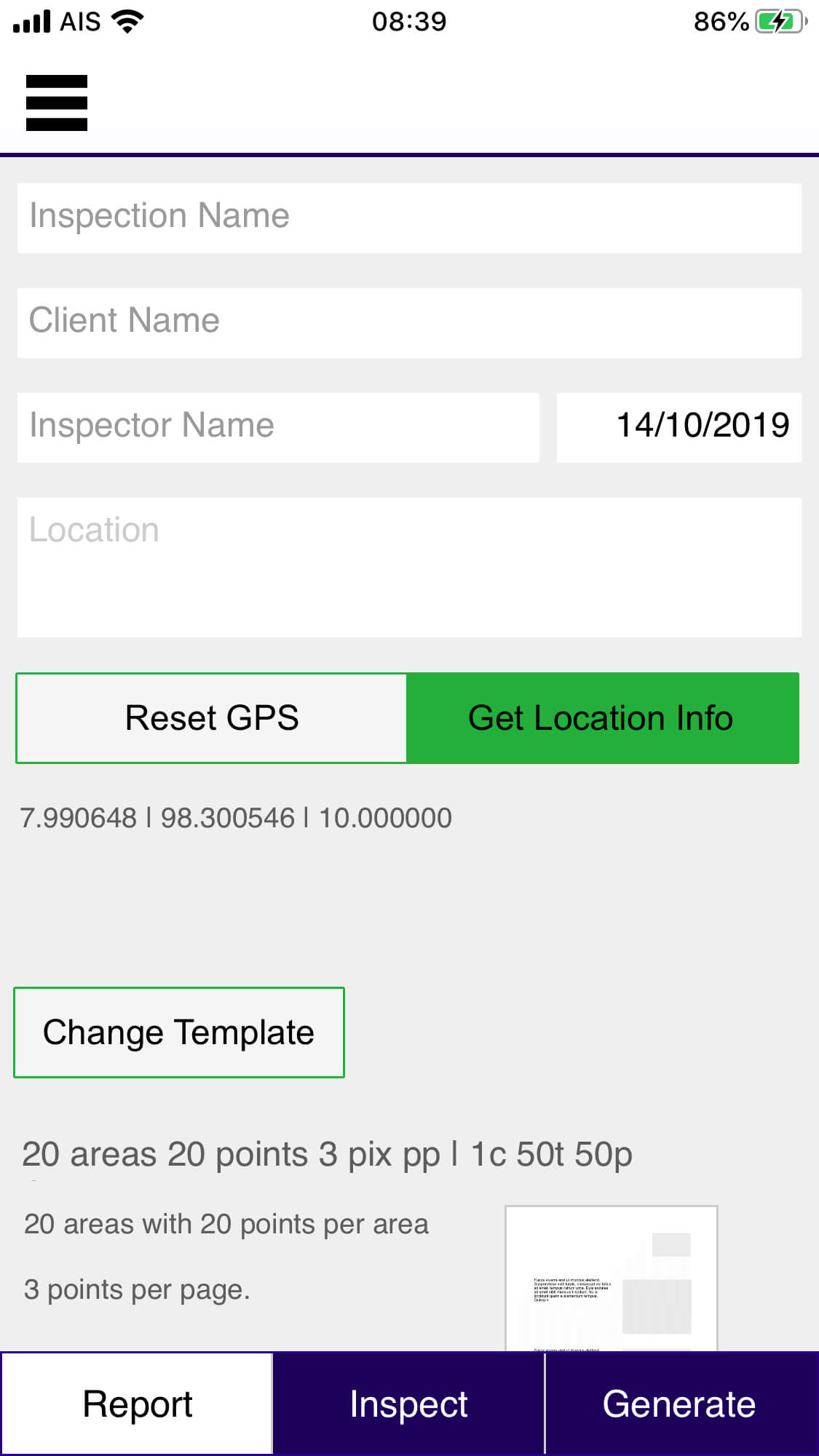
The GPS data is collected, and shown below the location buttons Pressing “Get Location Info” will add the location address and weather to the report. This requires an internet connection.

Location and Weather Added

Thumbnail

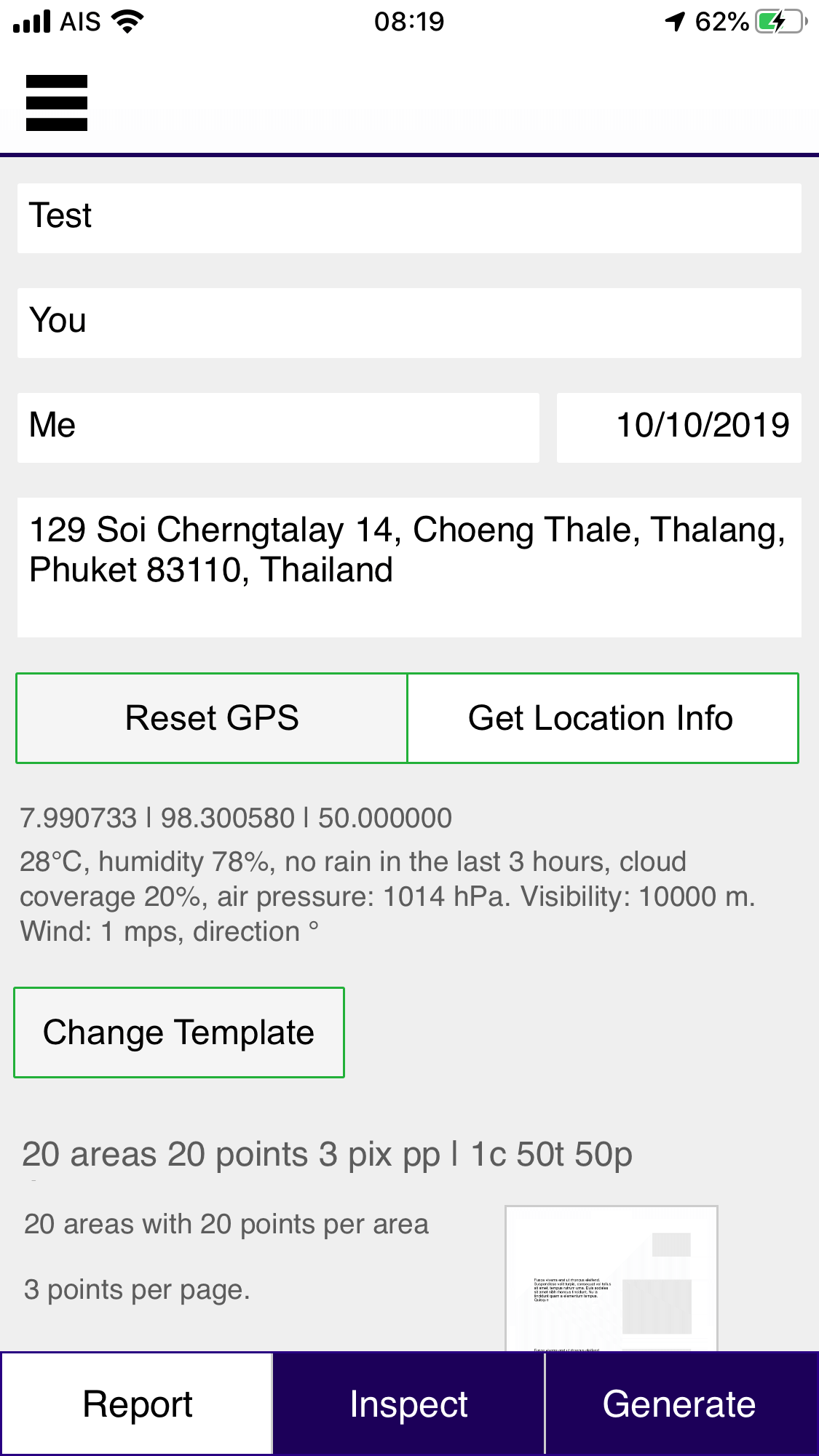
The location address is provided by Google based upon GPS details. In some locations the data is not 100% accurate. Similarly the weather details is provided by OpenWeather, accuracy may vary. Now click on the “Inspect” button to start adding information.

Areas

Thumbnail

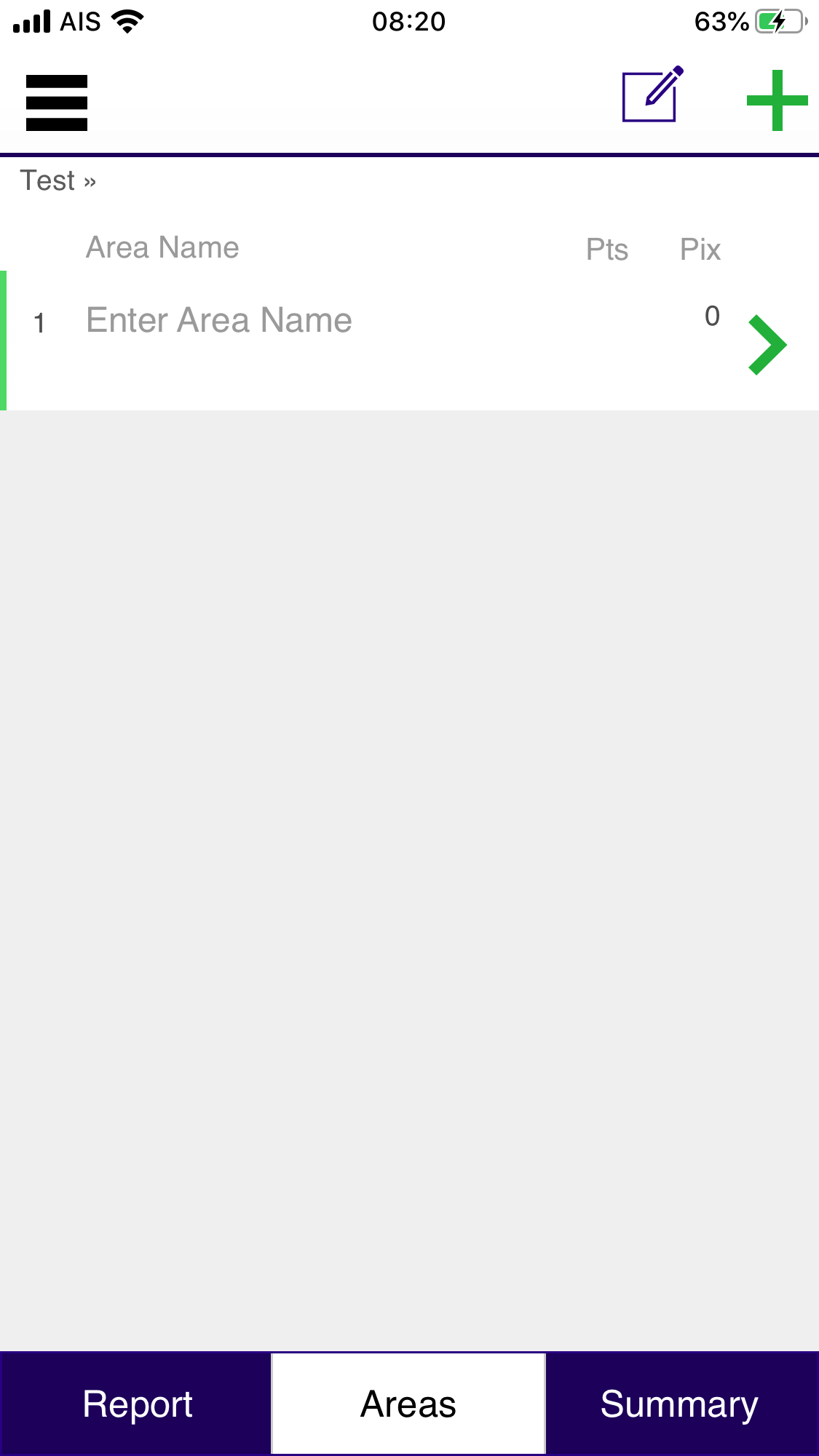
Note the menu bar on the bottom of the screen has changed. This reflects options and steps related to your current screen. Enter the name of the first area you are inspecting

Areas

Thumbnail

Add details, then click on the green arrow to go to the points screen...

Points

Thumbnail

Can can now add points to the inspection: the location name, notes and a photograph. Press the camera icon to take a photo, if you want to use an image from your Photo library press the ‘picture’ icon (to the right of the camera icon on the bottom of the screen.) Note the navigation ‘breadcrumbs’ below the hamburger menu, this shows Report Name: Area Name

Points Filled

Thumbnail

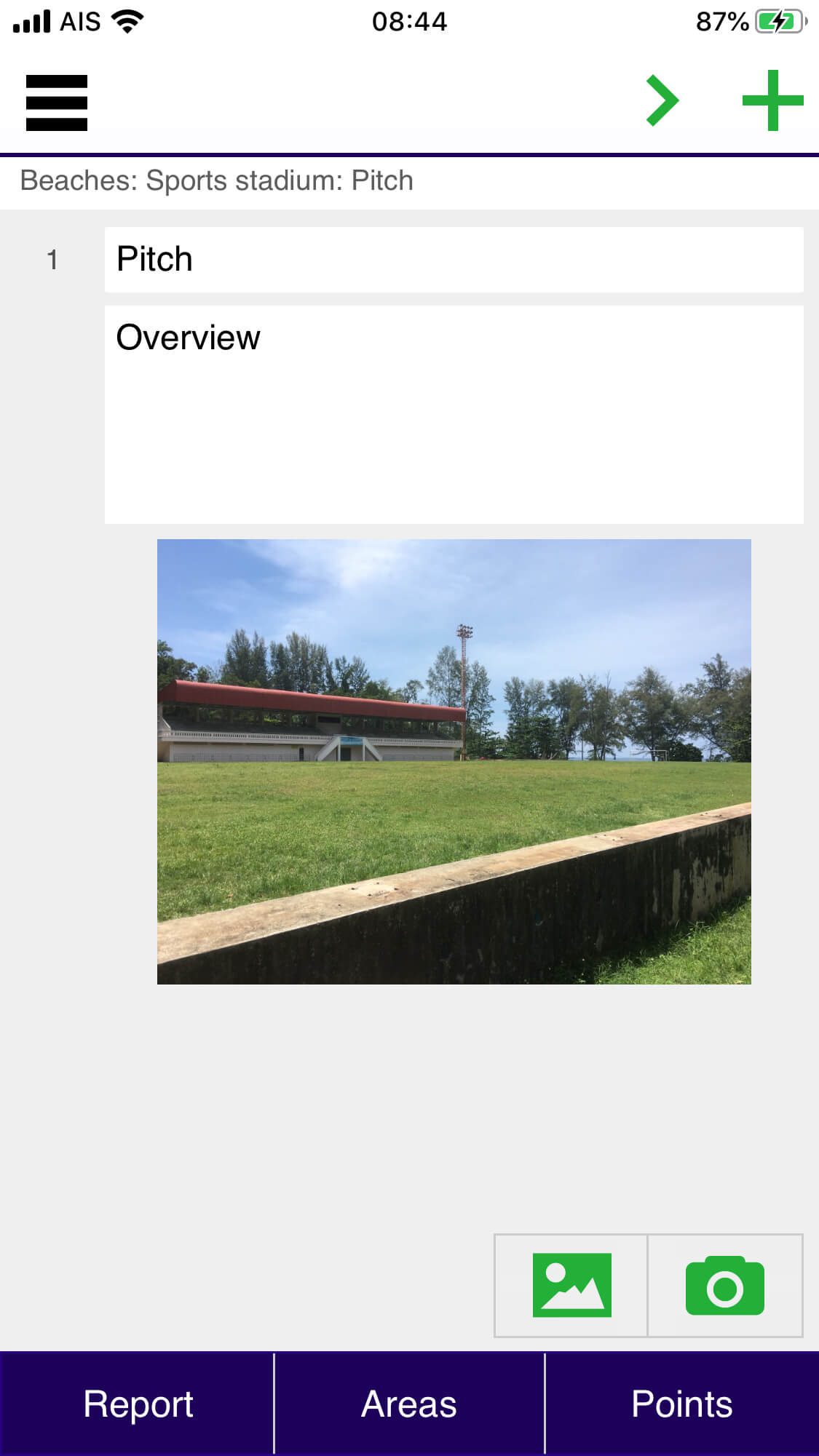
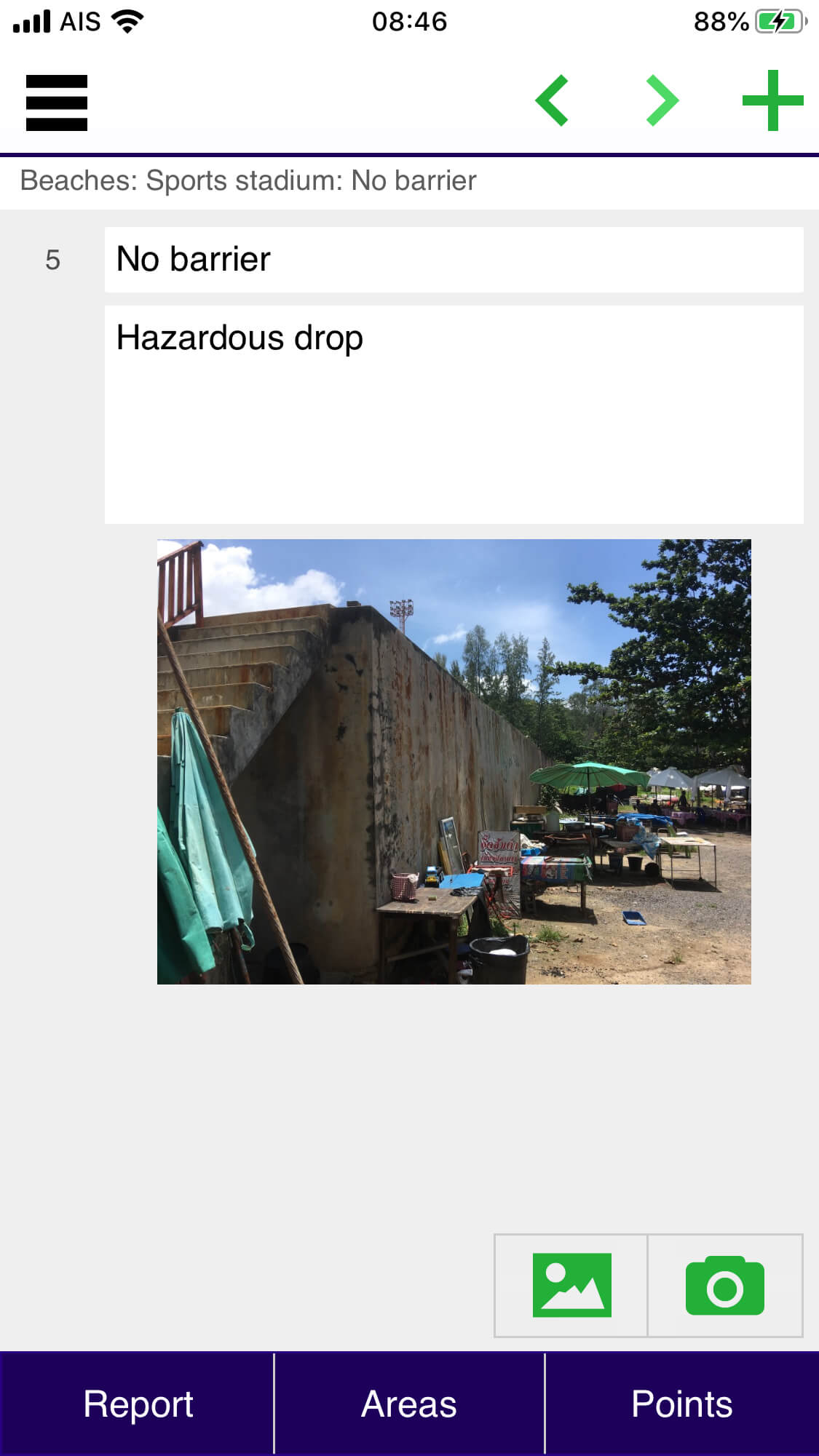
The location and notes have been filled in, and a photo has been added.

Dictating Notes

Thumbnail

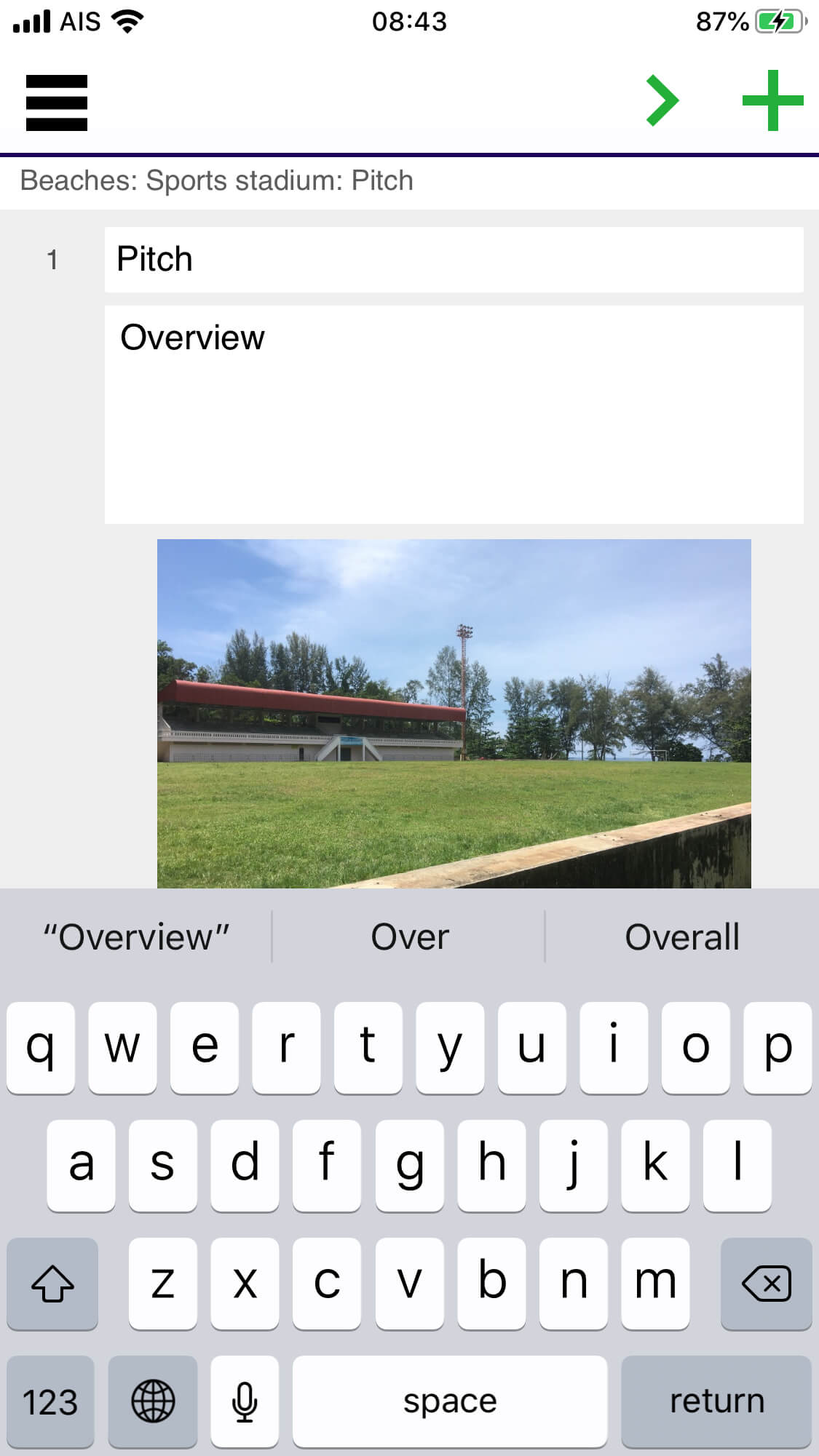
Rather than typing in data, you can also dictate into the system. Press the microphone button to right of the space bar in the on-screen keyboard. The dictation service is provided by the device - not the app. Quality of the dictation varies, particularly in noisy environments or using technical words results can be less than perfect.

Continue adding points

Thumbnail

Use the + to add a new point, and the arrows to navigation backwards and forwards between points if required.

Points in an Area

Thumbnail

Areas

Thumbnail

Generate Report

Thumbnail

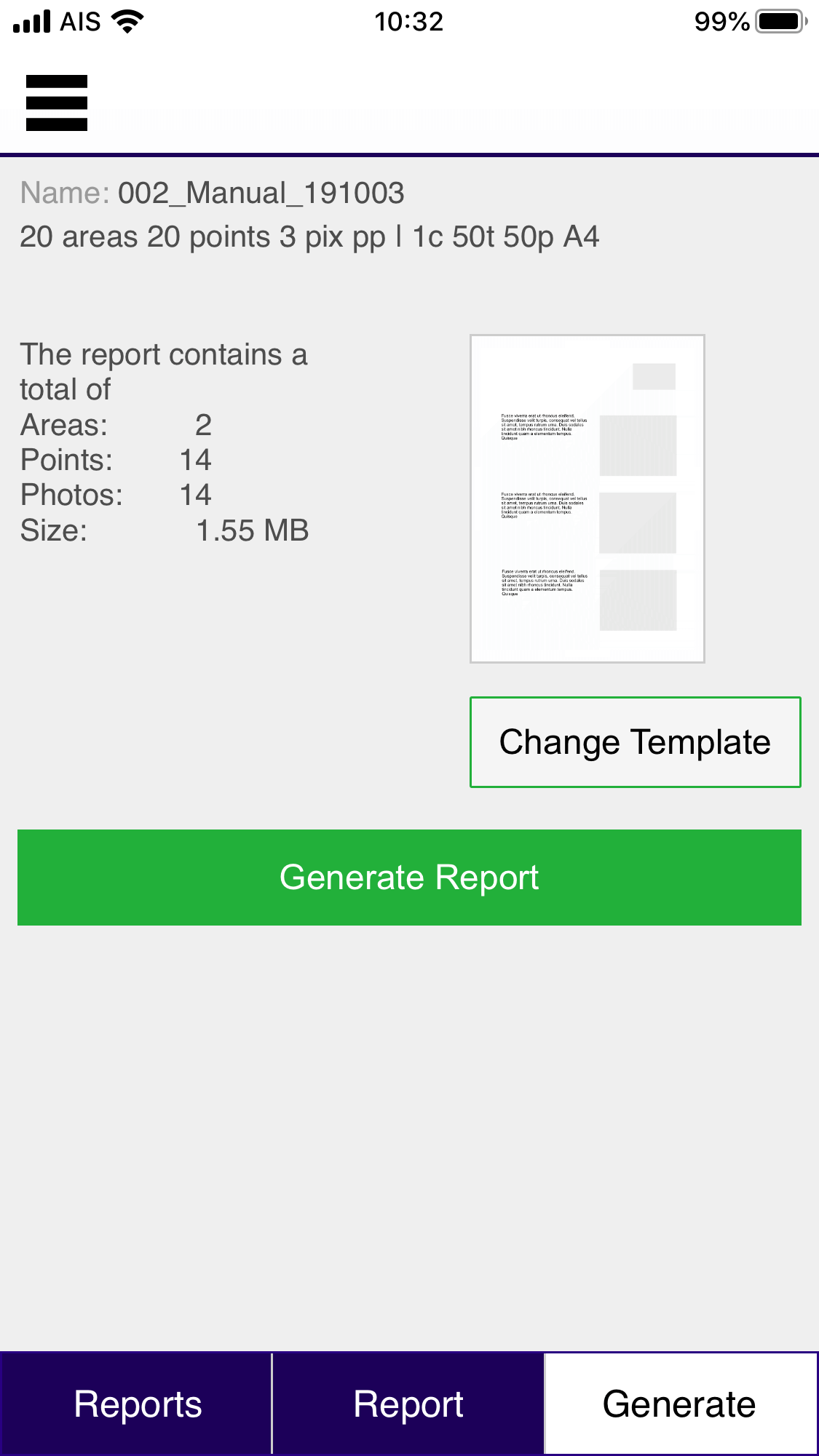
Once you have completed adding areas and points to the report you can generate the report. The screen shows report’s name, the details of the selected template, together with number of areas, points, photos and the size of the photo data. At this point you can change the template if you wish. Generating the report requires a reliable internet connection as the app communicates with the computers at Google to build the report. Unreliable connections may cause problems. A trusted wi-fi connection is recommended. It is possible to create the report using mobile data, however speeds may be slower and you should watch your data usage if applicable.

Power Warning

Thumbnail

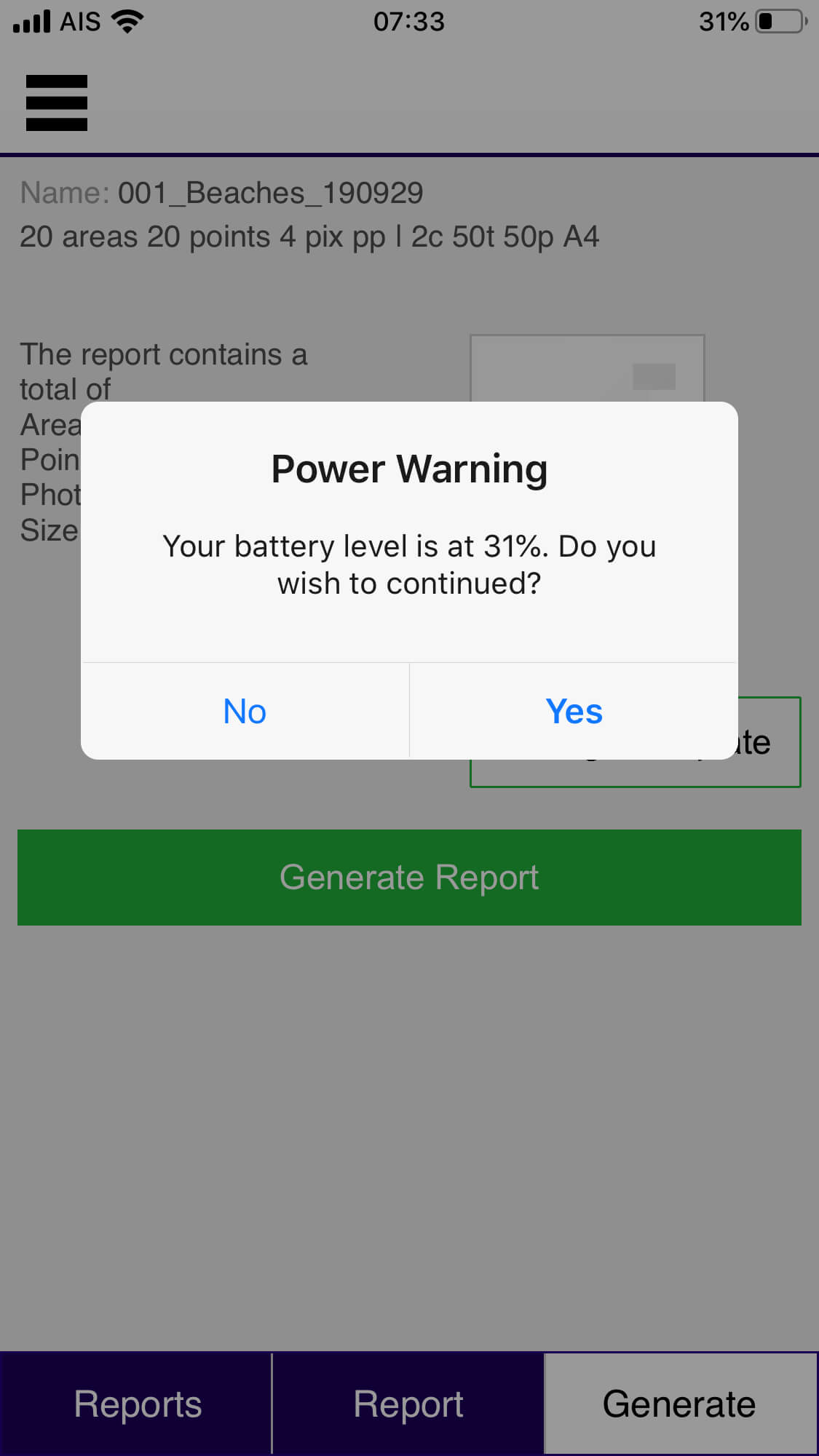
You will see a message if your battery level is below 50% and the device is not plugged in to a charger. If the report is large you should consider plugging it into the charger.

Generation Process

Thumbnail

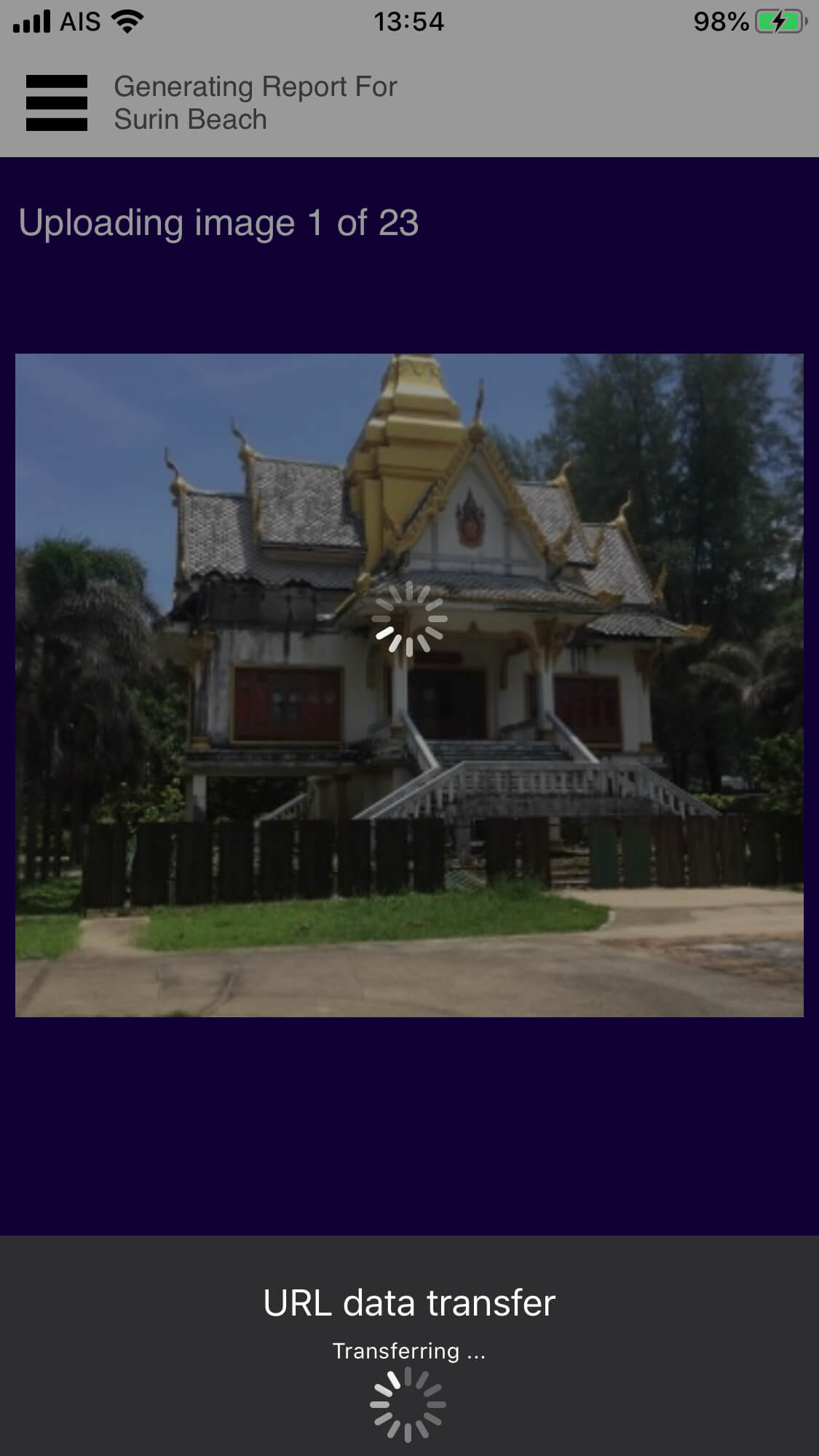
The screen will show you the progress of the report generation. In this picture we see the a photo being uploaded to Google Drive. The generation process has multiple stages, with status being shown on this screen. The amount of time required to generate the report depends on the number of photos, and the speed of your internet connection. On a decent connection you can upload about five photos per minute. (Google Drive is not super-fast when uploading photos.)

Resume Generation

Thumbnail

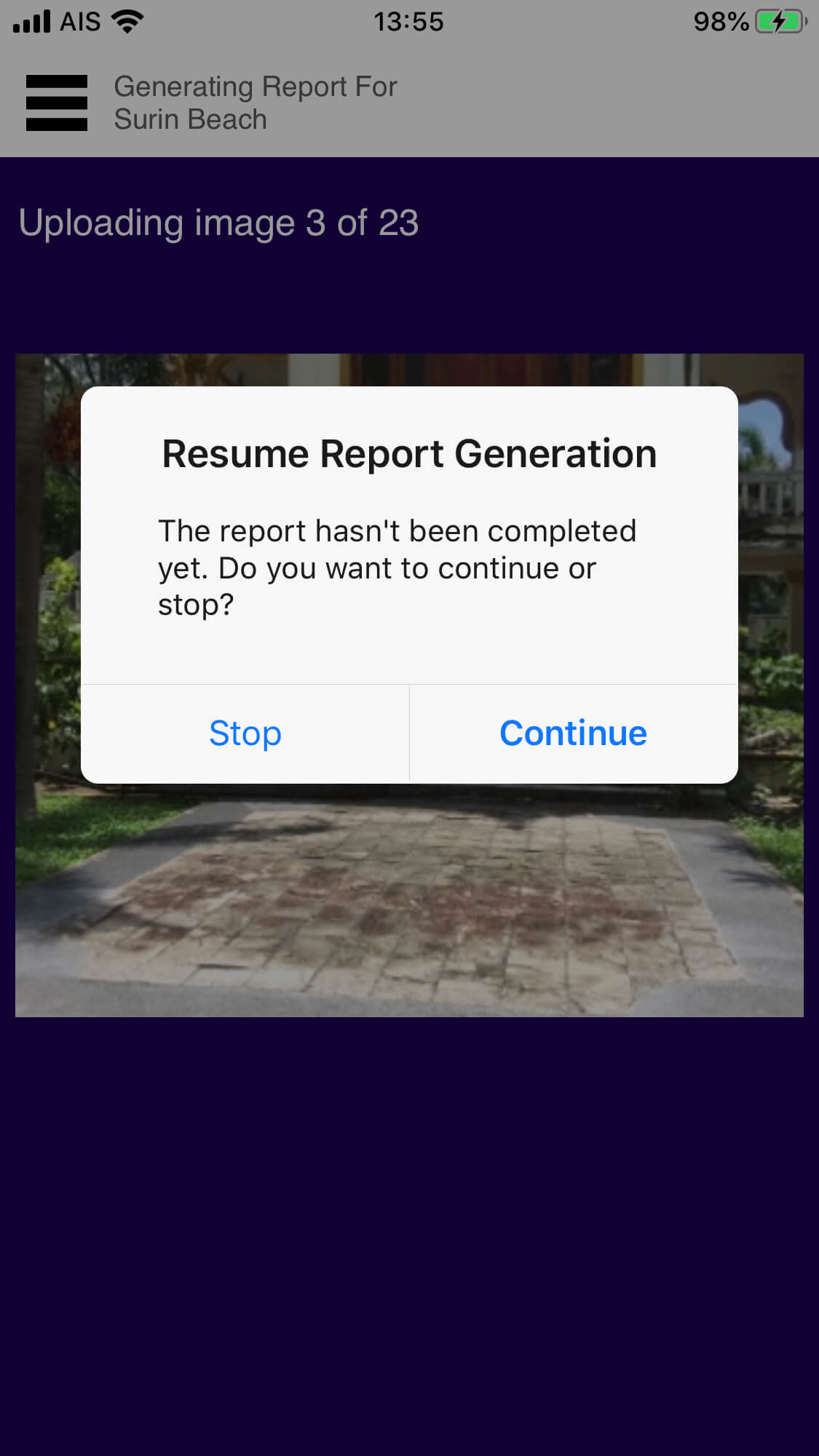
If you leave the app during the report generation process, for example to answer a phone call, the app will pause generating the the report - this isn’t a problem. On returning to the app you will receive a notice asking you to continue generating the report or stop.

Completion

Thumbnail

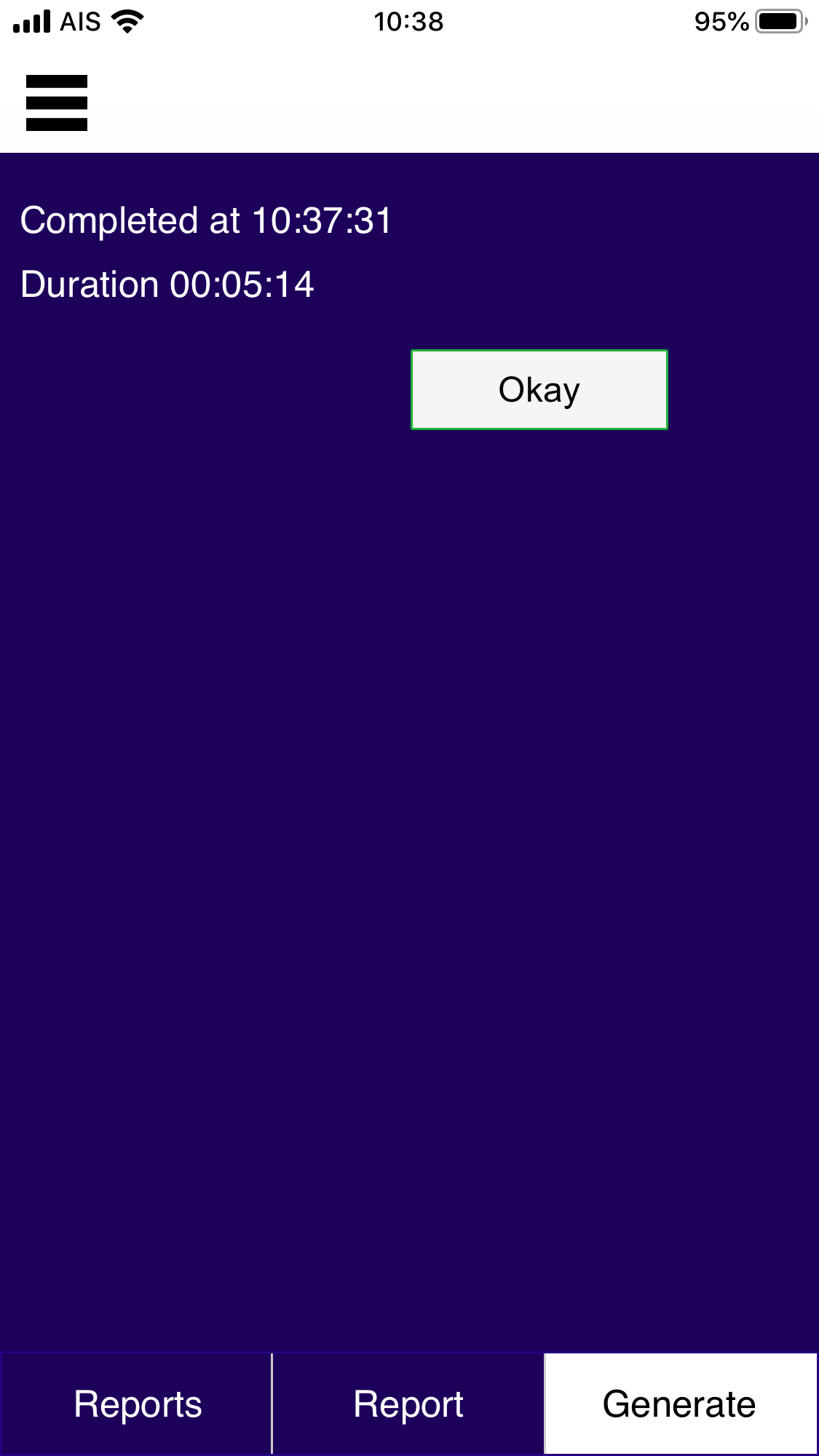
Once the report has been successfully completed you will see this screen. To continue back to the main app press okay.

Generate Screen After Completion

Thumbnail

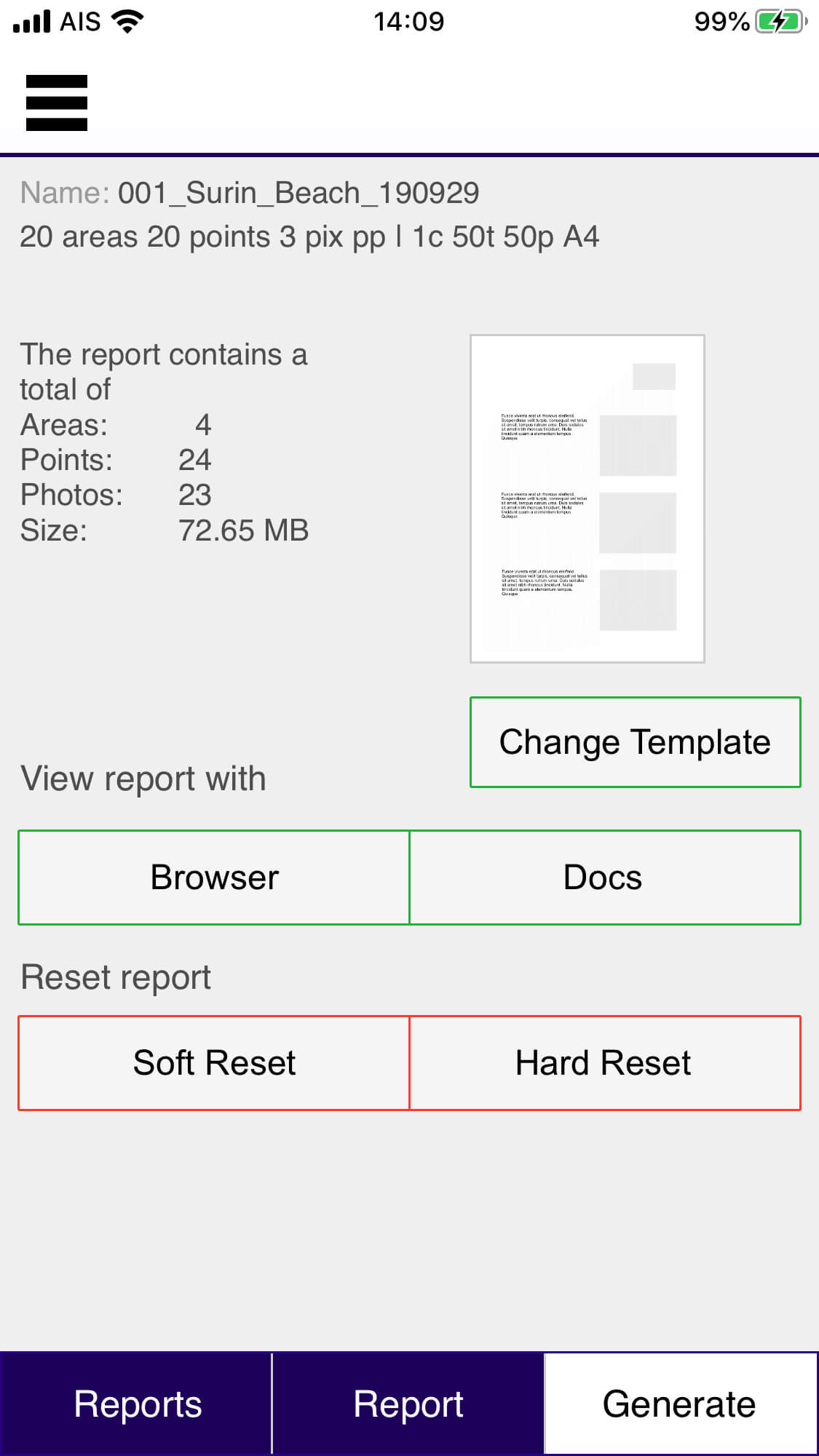
When you return to the Generate screen after the report has been completed you have several options: View report with either a browser or with the Google Docs app (you need to install this if not present.) Either option will allow you to view (and edit) the completed report. Editing on an iPad is less of a challenge than on an iPhone due to screen size, but we would recommend using a desktop or laptop. Beneath those buttons you have two options to reset the report. In most cases you do not need to to do anything. During the report generation process the app records information from Google about the pictures it has uploaded....MORE

View in Docs

Thumbnail

Resets

Thumbnail

HARD AND SOFT RESETS

Errors

Thumbnail

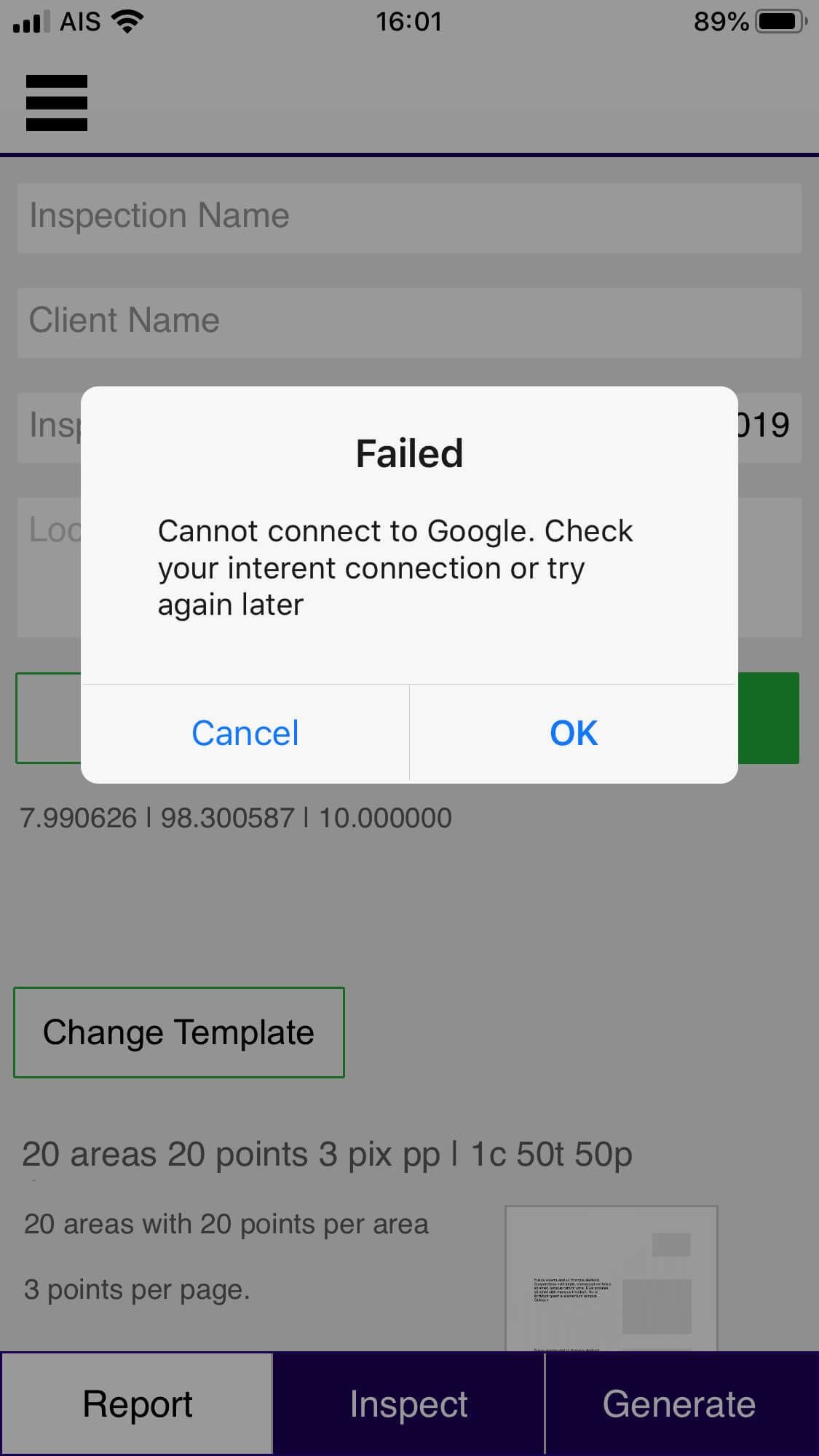
Hopefully you’ll rarely see error messages. However they will occur, the most frequent causes of errors are: poor internet connection (as shown); servers failing to respond correctly (this is fairly infrequent.) If this happens during report generation the app will retry to complete it’s task, but if errors continue it will stop. You will need to try again later.

GPS Location

Thumbnail

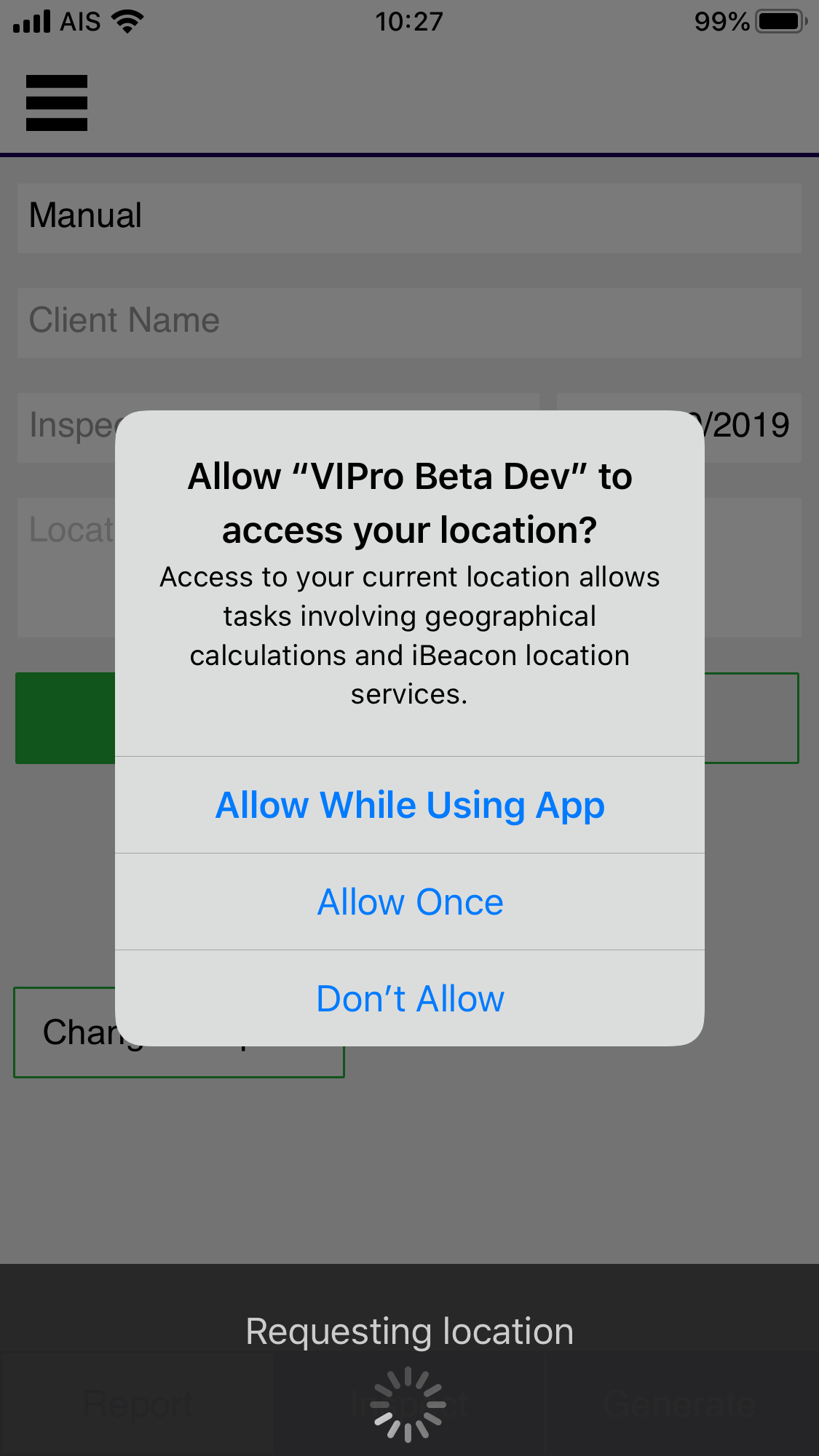
The app requires permission to record the location of the report. The collected GPS information is then used to get the location’s address and weather information.

Camera

Thumbnail

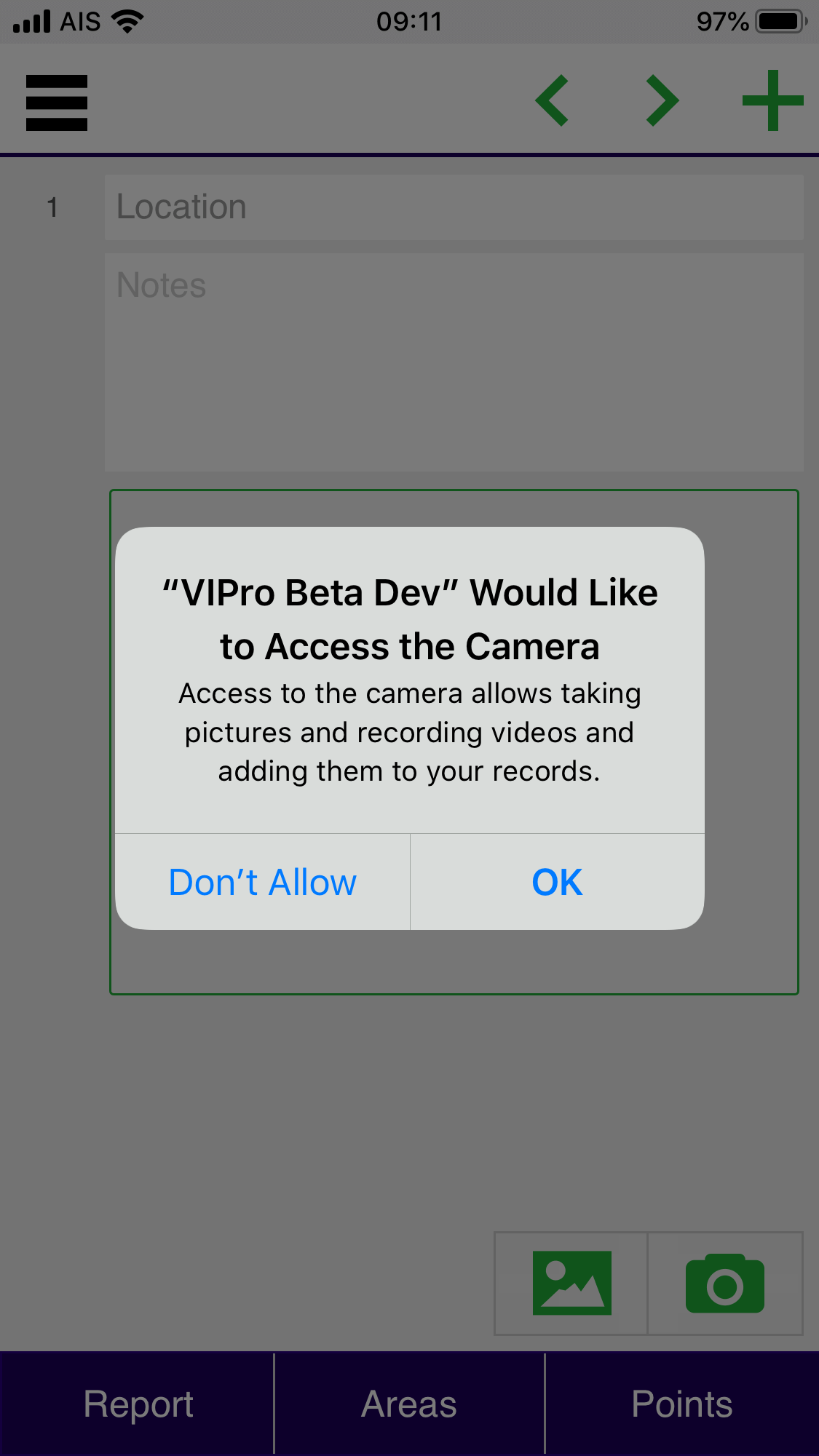
What would a visual report be with out photos! You need to grant permission to use the camera.

Photo Library

Thumbnail

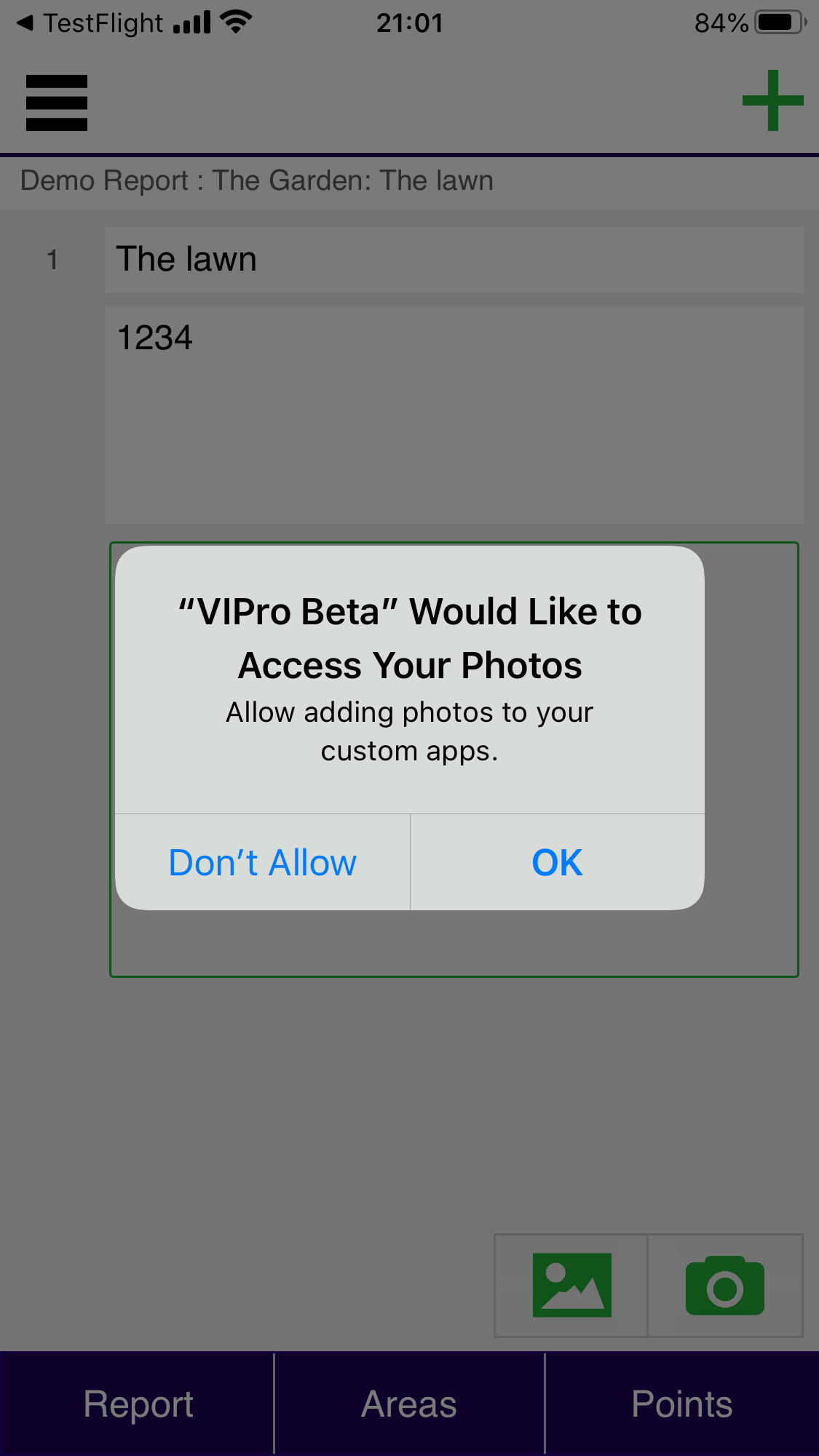
You can add images from your Photo Library to the report. Once again you need to allow the app to access your photos.

Permission Preference

Thumbnail

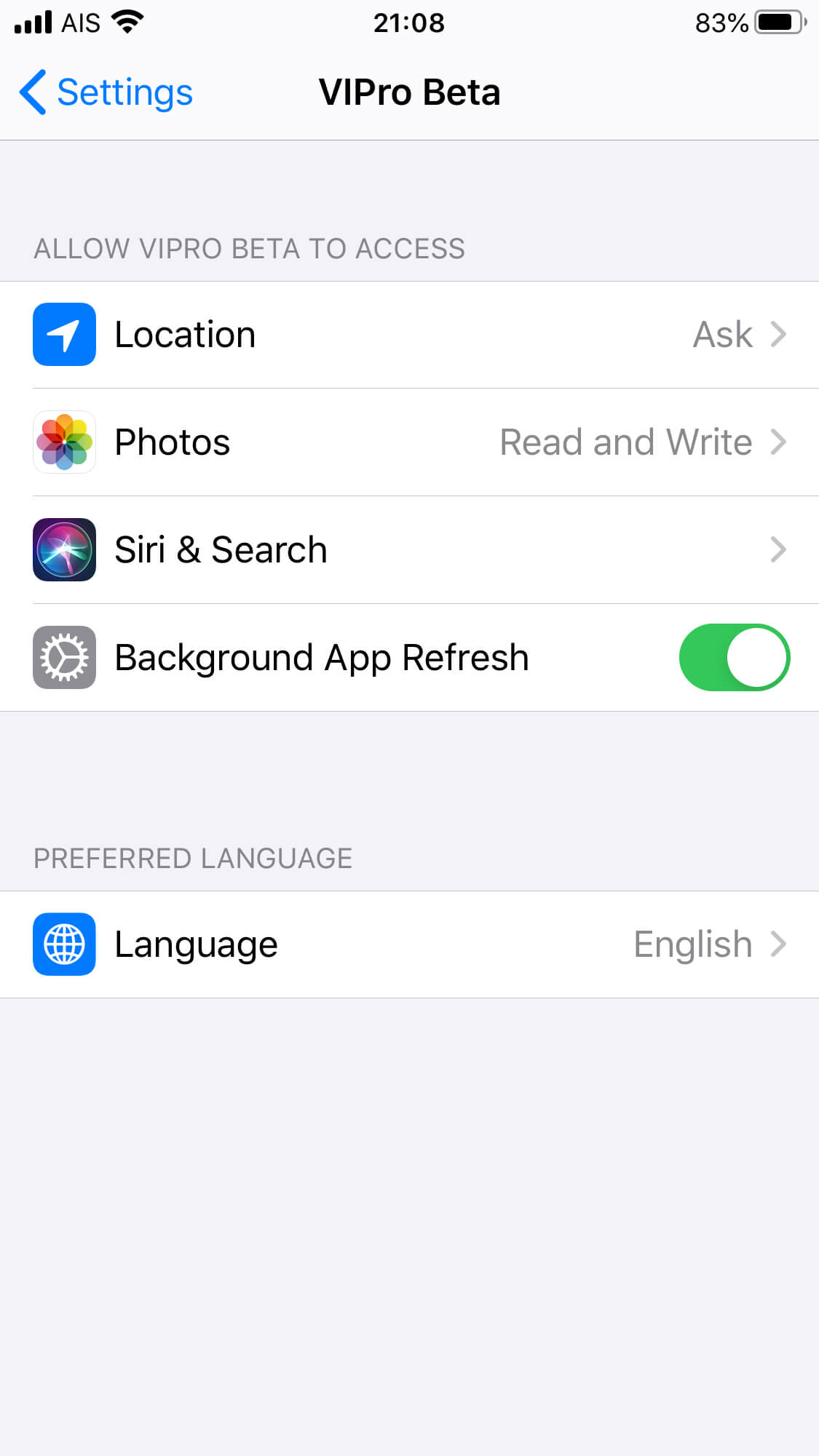
If you need to change any of the permissions, for example you didn’t allow access to your camera, open the Settings app on your device, and scroll down towards the bottom and select VIPro Beta

Microphone

Thumbnail

If you would like to dictate notes then the app needs to access your microphone.

Setup

Thumbnail

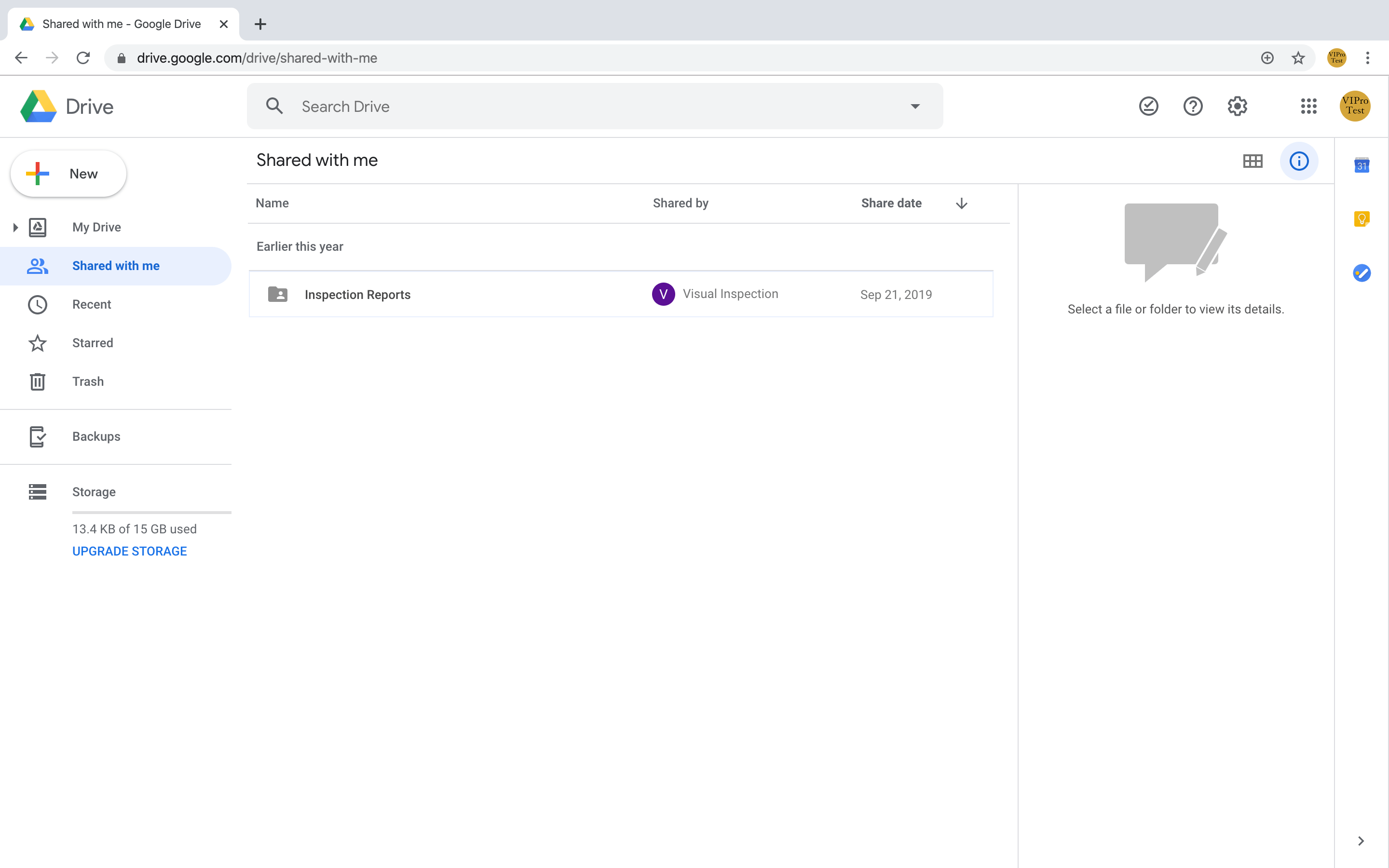
When the VIPro system creates your account it generates a set of folders and files which are shared with you through Google Docs. Once you log into your Google Drive they will appear under the shared folder

Folder Overview

Thumbnail

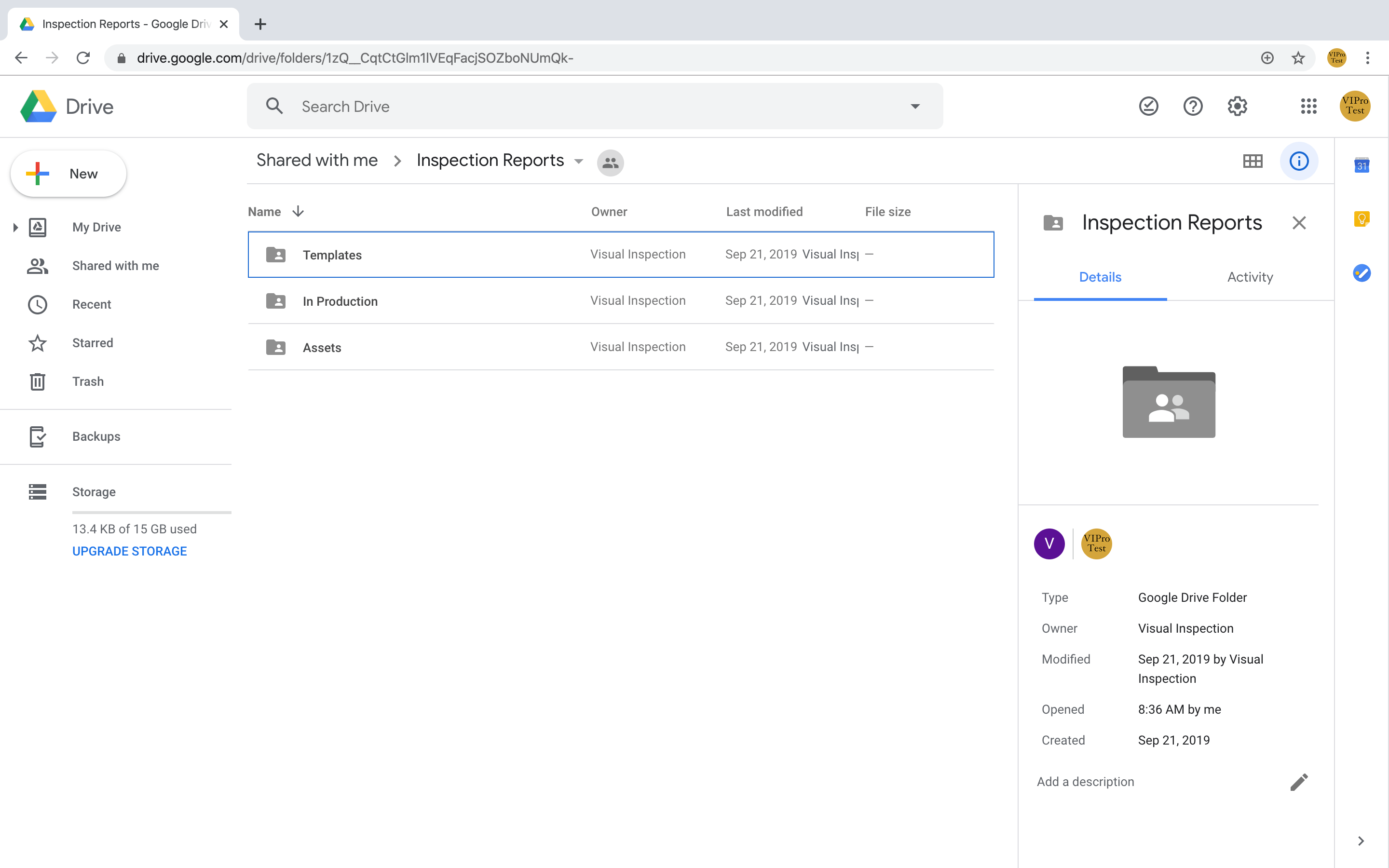
Three folders are generated: Templates; In Production and Assets.

Templates Foloder

Thumbnail

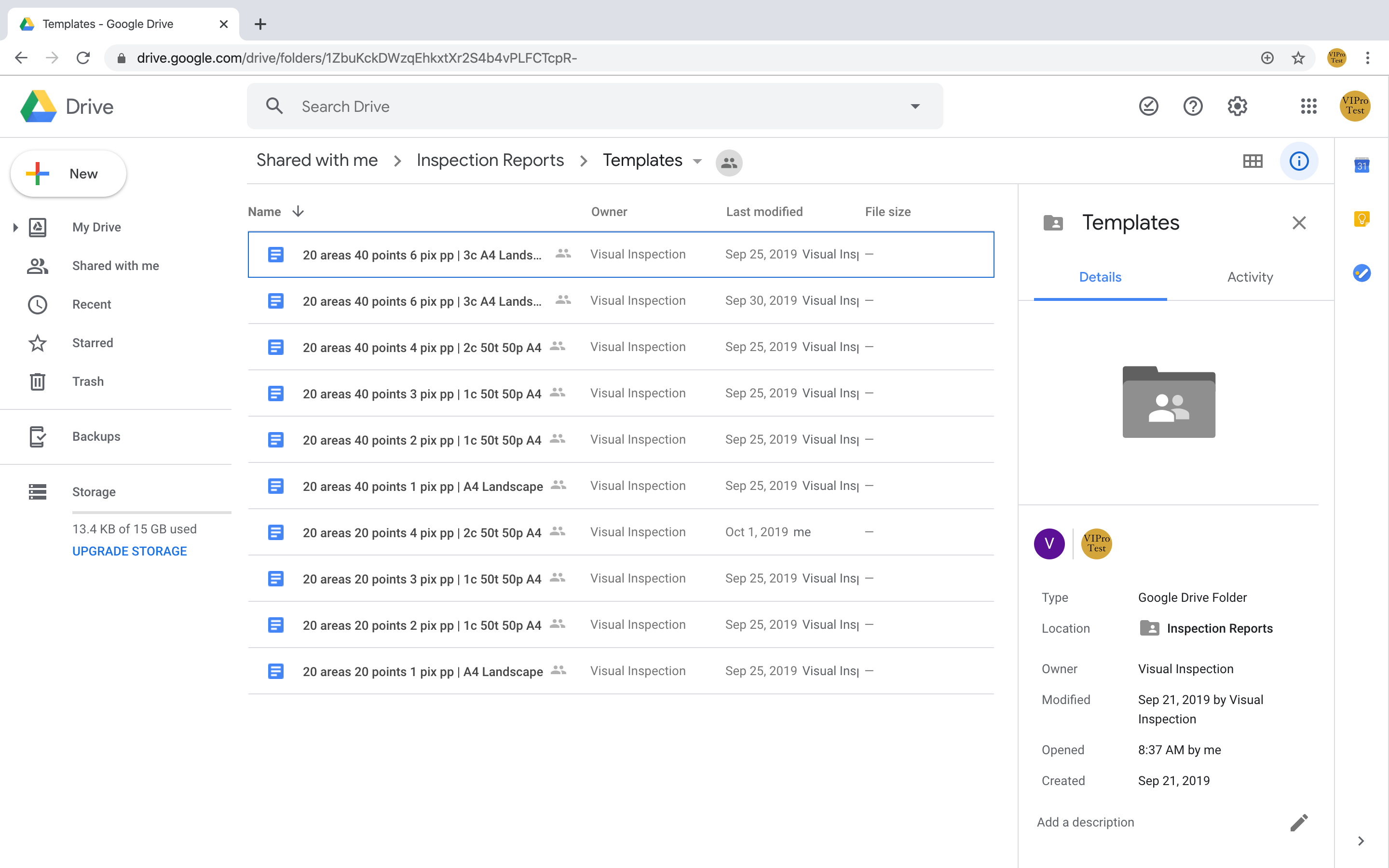
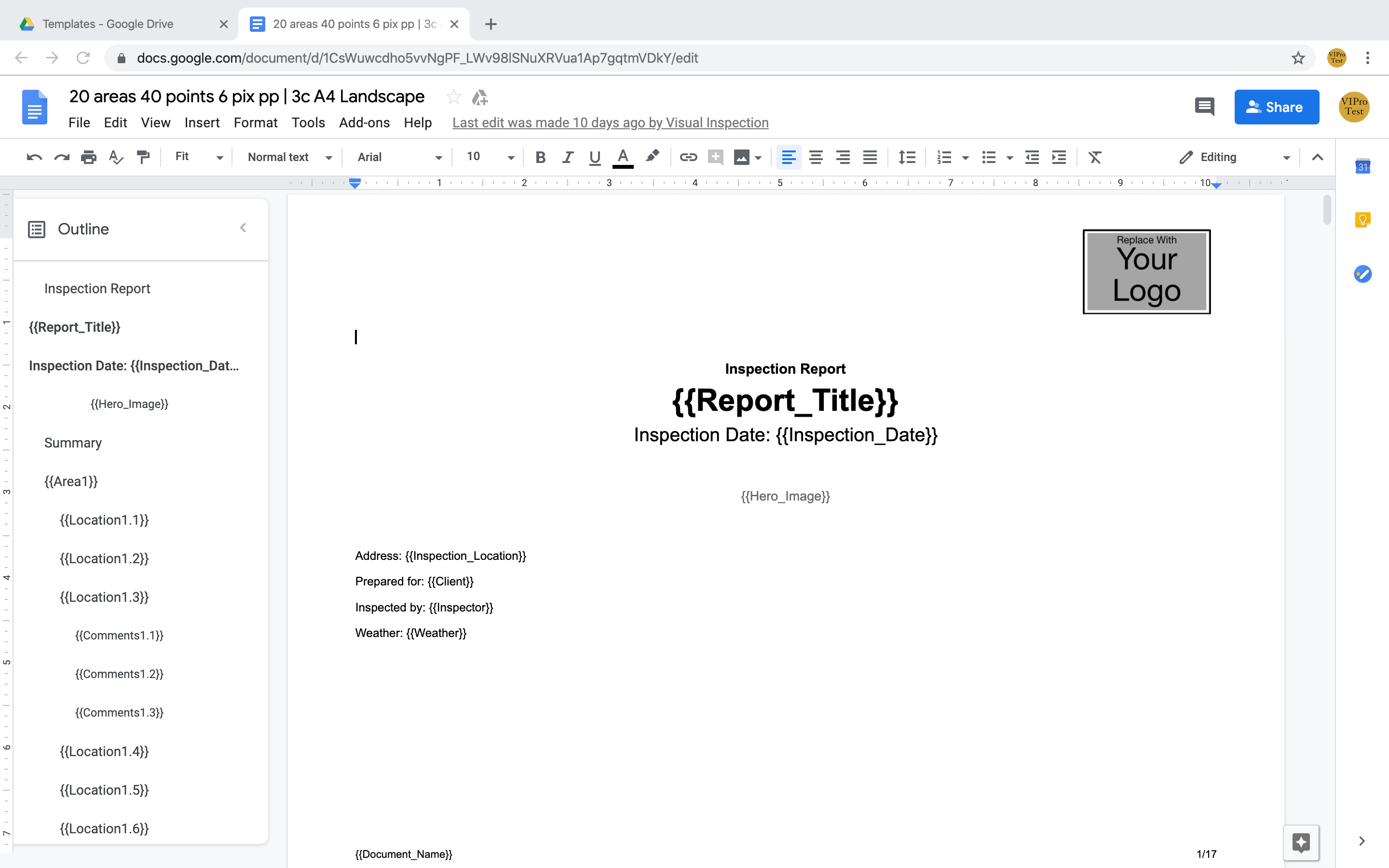
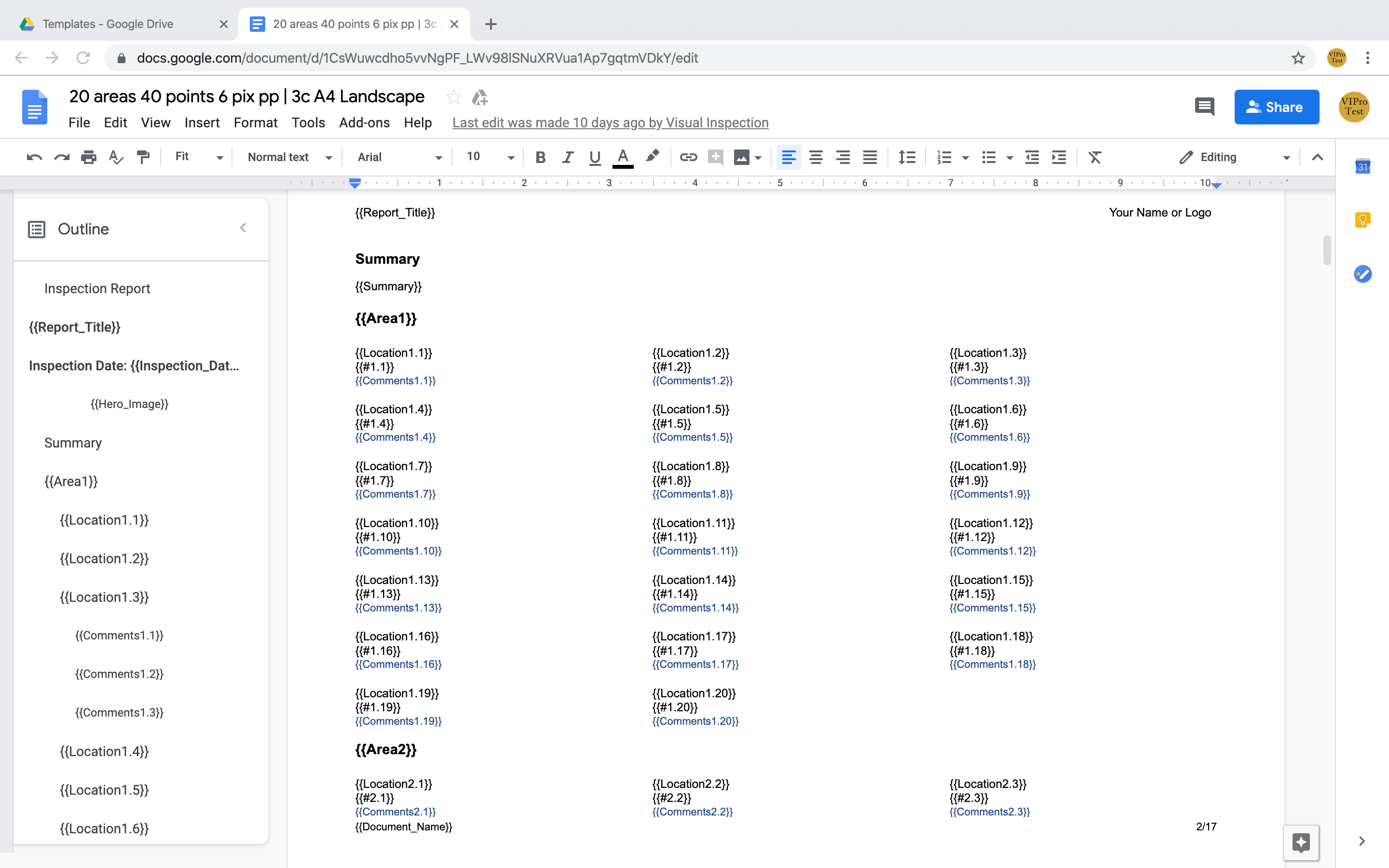
The set of base templates that reports are based on. You can customise these - see the customisation section.

In Production Folder

Thumbnail

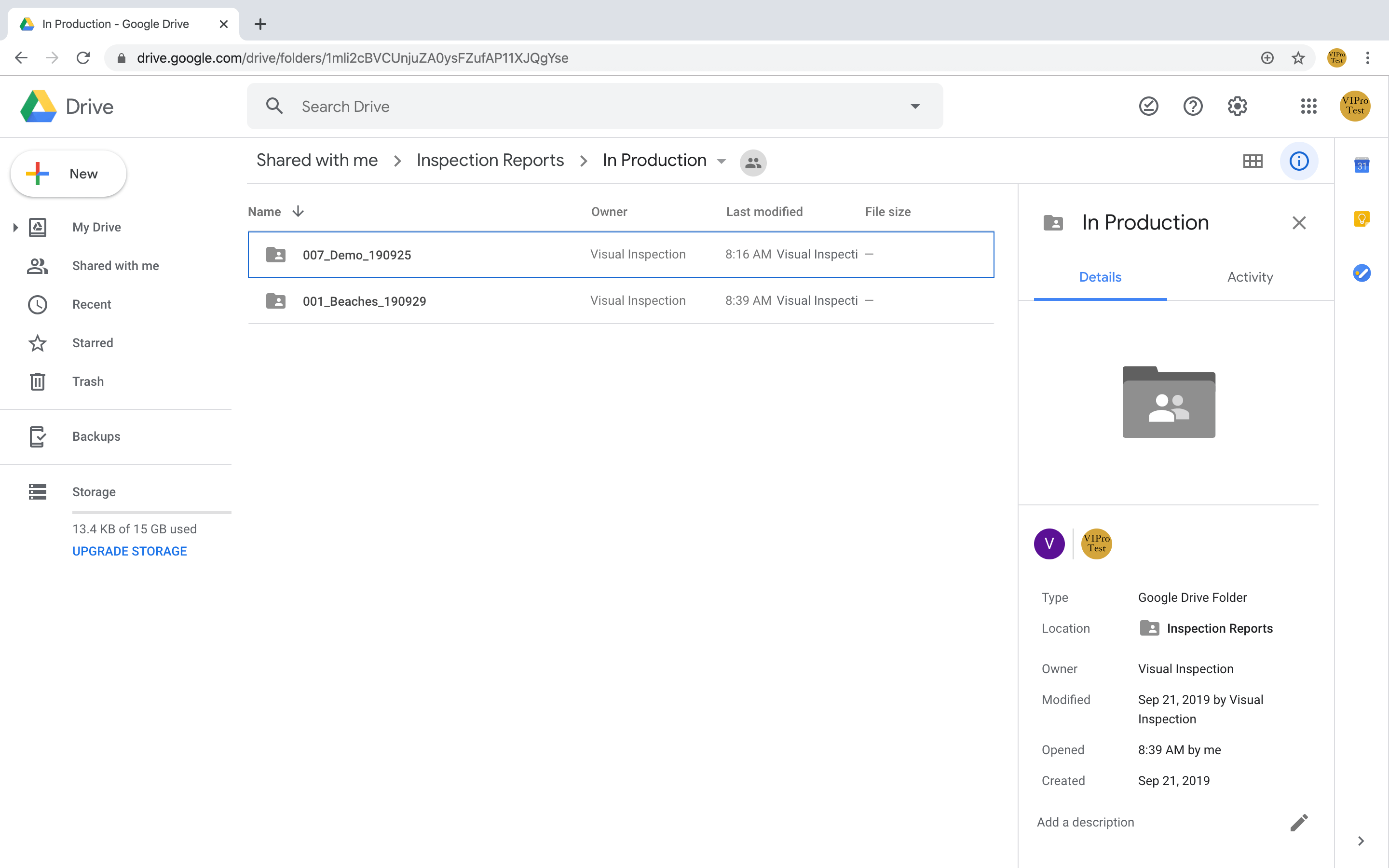
This contains folders for each reports that you have generated, or are generating.

In Production Folder

Thumbnail

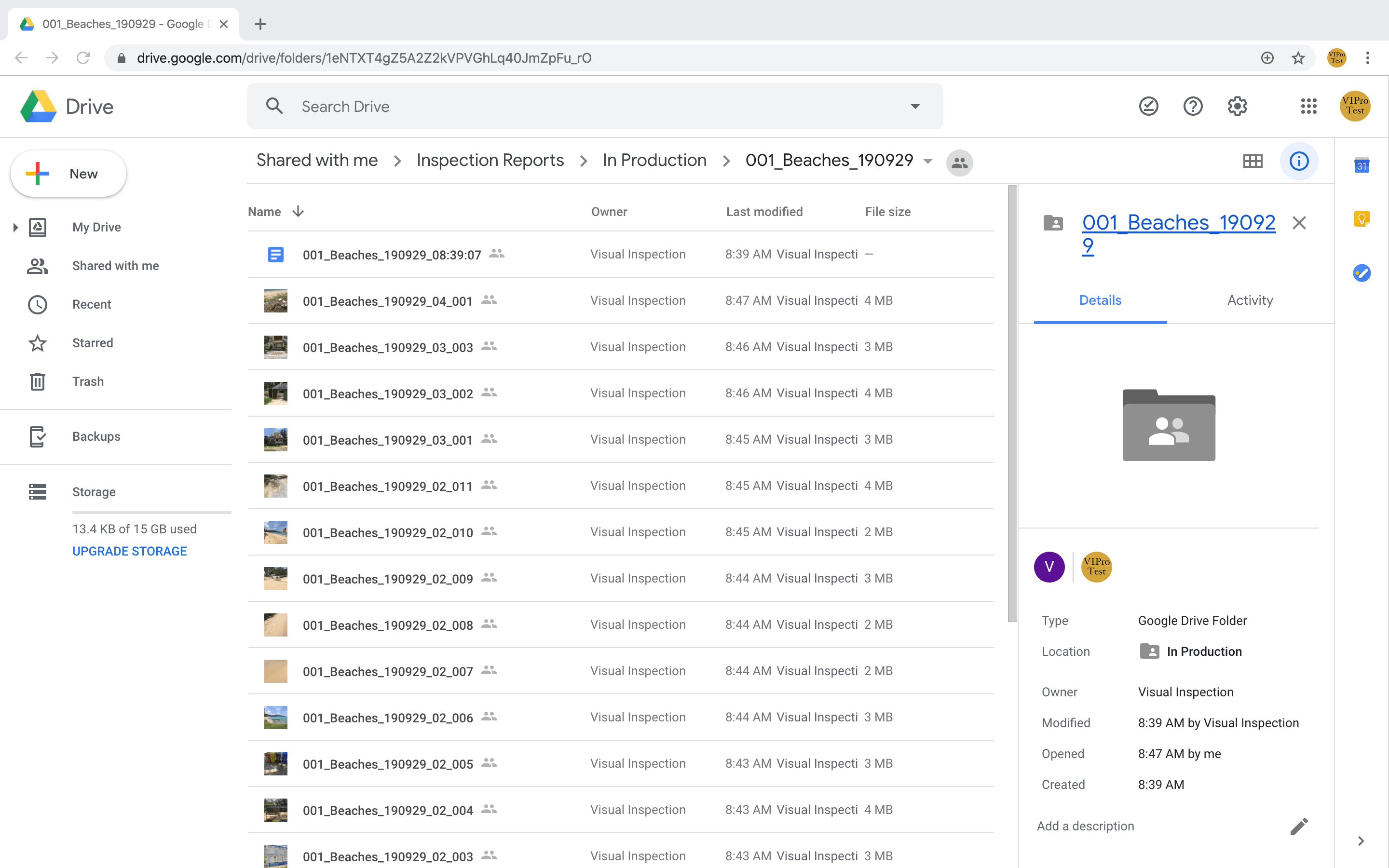
Images are automatically named with the report number, report title, report date, area and point. The Google Doc is named with report number, title, date and then the time it was generated.

Page 1

Thumbnail

Page 2

Thumbnail